Invoices: From Claim to Payment Received
Informationen zum Artikel

Autor: Dmitry Dugarev
Invoices is your bookkeeping. Here, a billable job becomes a real document with a number, date, and amount – and here you track whether it's been paid.
Unlike a job, an invoice is immutable. Once issued, it stays exactly as it is; corrections happen via cancellation and a Korrekturrechnung (correction invoice). This is required by the GoBD, and DolmiDesk™ complies with it automatically.
The List
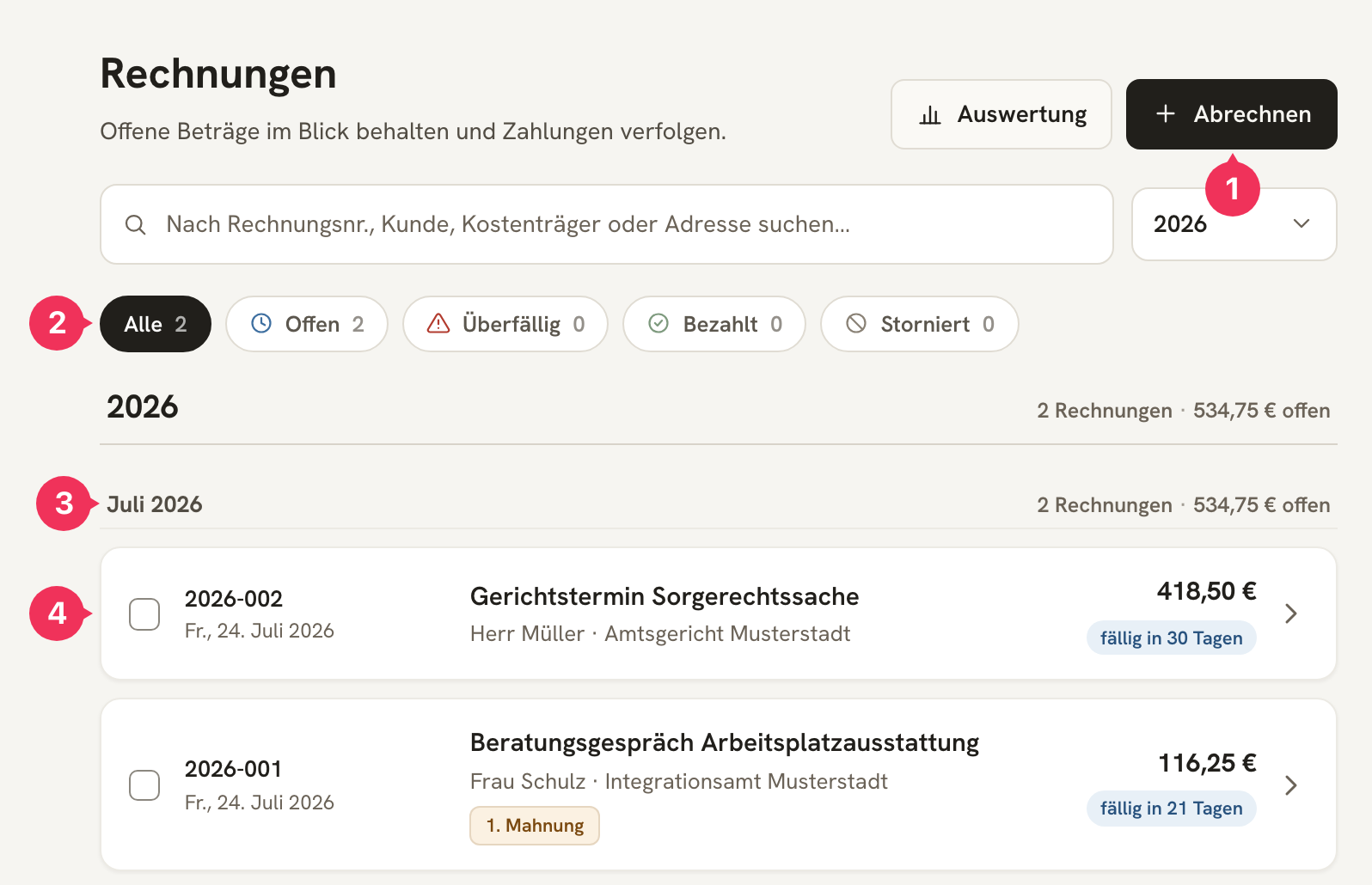
- Abrechnen opens the list of billable jobs – the path to new invoices.
- The status filters: Offen, Überfällig, Bezahlt, Storniert.
- The summary rows for each year and month show how much is open, overdue, or paid.
- Every row is a document: invoice number, issue date, occasion, client · Kostenträger, amount, and due date. Extra badges indicate a Sammelrechnung or an already-created Mahnung (reminder).
| Status | Meaning |
|---|---|
| Offen | Issued, not yet (fully) paid. |
| Überfällig | The due date has passed. Time to send a Mahnung. |
| Bezahlt | The full amount has come in. |
| Storniert | Cancelled by a Stornorechnung (cancellation invoice). |
Creating Invoices
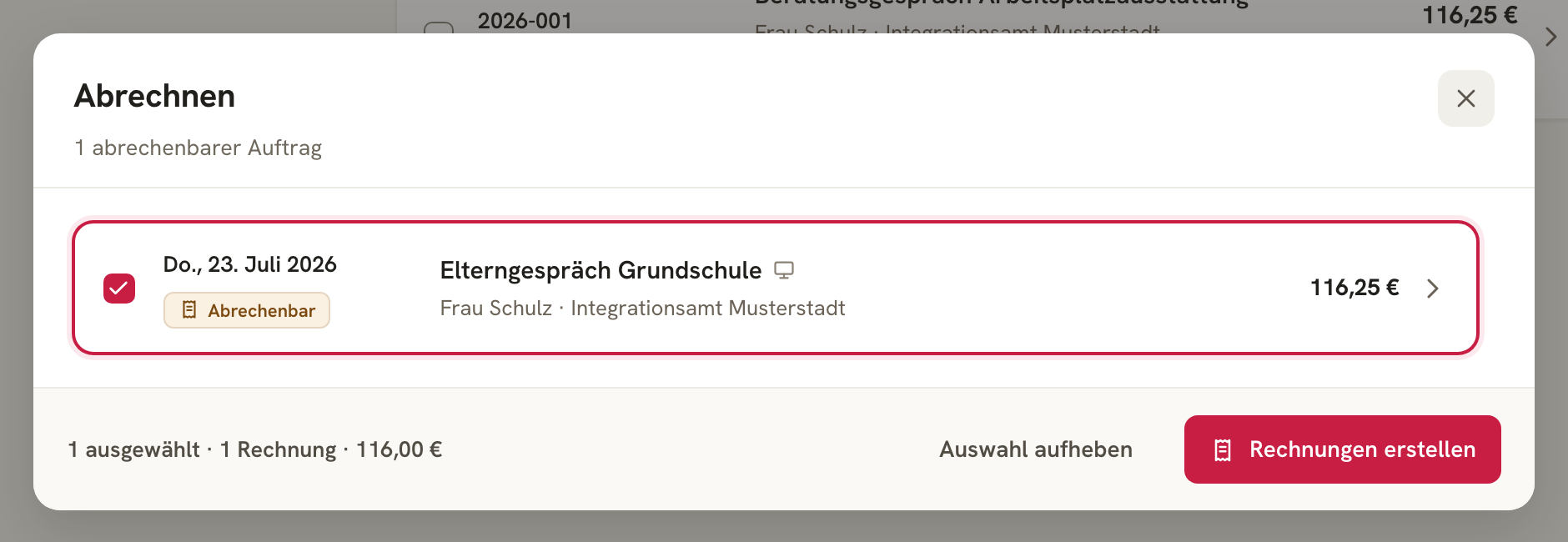
Select the jobs you want to bill, and click Rechnungen erstellen. The footer tells you in advance how many invoices this will produce and for what total amount. The three ways to get there – individually, in a batch, or automatically – are covered under Creating Invoices.
Here's what happens when an invoice is created:
- The invoice gets the next sequential number in your format and today's issue date; the service date comes from the job.
- The due date is derived from the Kostenträger's Zahlungsziel (payment term), or from the default set in Settings.
- Everything that determines the amount is frozen: the version of the Abrechnungsmodell (billing model), the version of the Rechnungsvorlage (invoice template), and the name and address of everyone involved. Later changes to Stammdaten (master data) or rates no longer affect this invoice.
- This produces both the PDF and the E-Rechnung (e-invoice) in ZUGFeRD format – a PDF that additionally has the invoice data embedded in machine-readable form.
- The job's attachments (assignment confirmations, tickets, parking receipts) are attached.
- The job switches to Abgerechnet (billed) and is now read-only.
The Invoice in Detail
Clicking a row opens the invoice. On the left, you see the finished document; on the right, everything you can do with it.
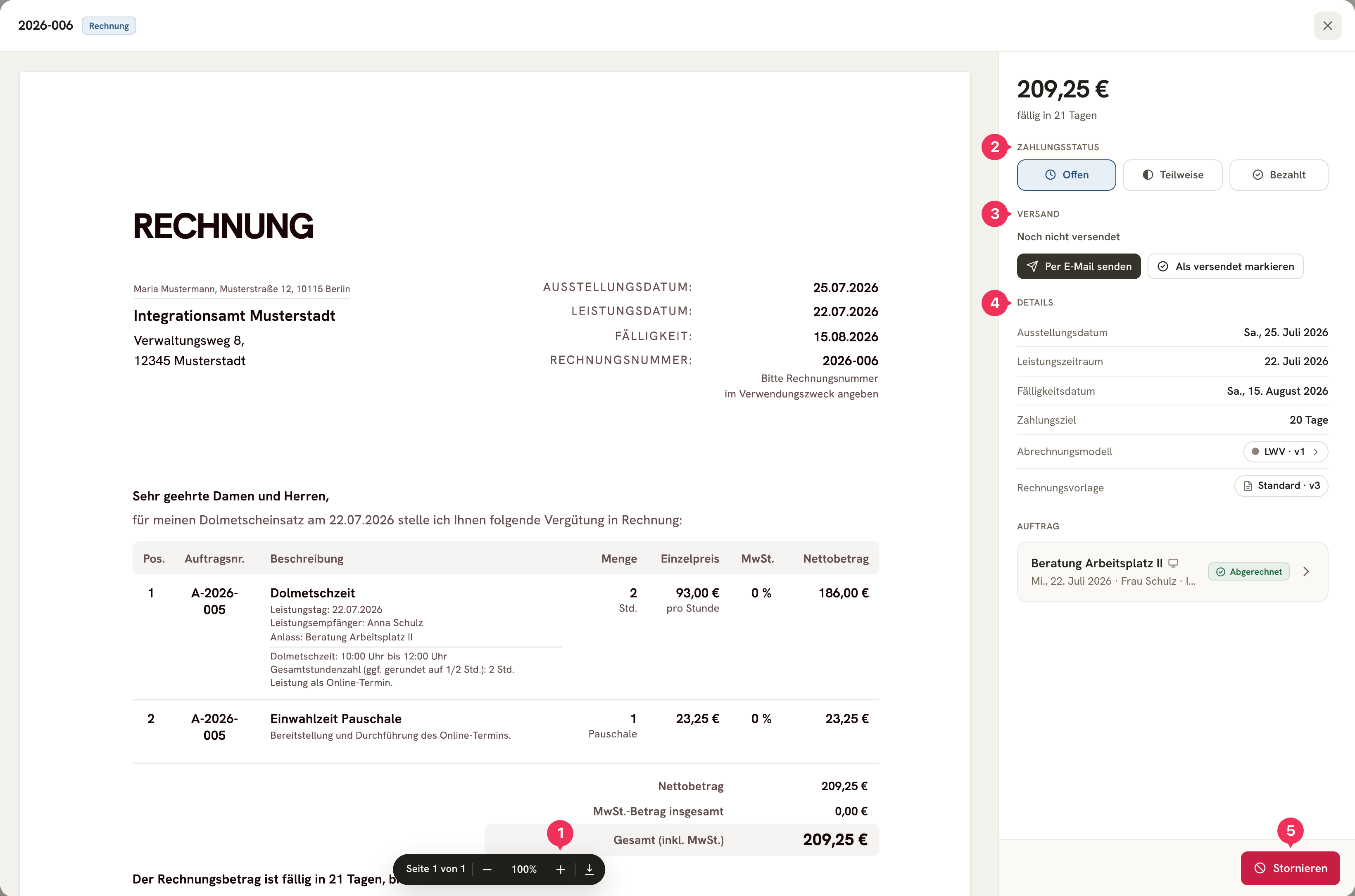
- Die Vorschau (preview) shows the document exactly as the Kostenträger receives it – with page navigation, zoom, and download.
- Zahlungsstatus (payment status) – this is where you record what's come in.
- Versand (sending) – send by email or mark as sent.
- Details – issue, service, and due dates, Zahlungsziel, the Abrechnungsmodell used, and the Rechnungsvorlage (each with a clickable version number), as well as the underlying jobs.
- Stornieren (cancel) – the only way to “undo” an invoice. It's red because it creates a document: a Stornorechnung with its own number (Red Means Money). DolmiDesk™ asks you to confirm before it goes through.
Sending
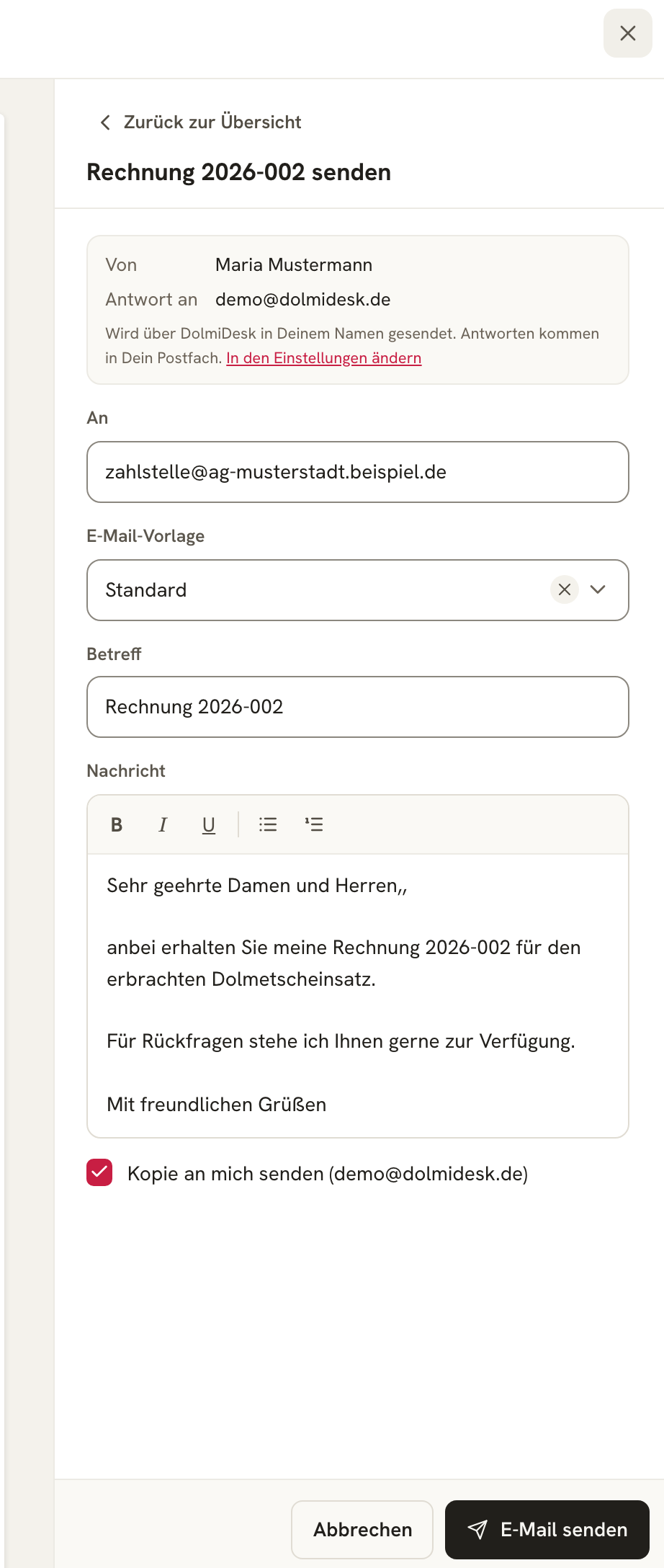
Per E-Mail senden (send by email) opens the finished message: the recipient address and E-Mail-Vorlage (email template) come from the Kostenträger, and the subject and body are pre-filled from the template – you can still edit them before sending. The invoice goes out as a PDF (with its attachments).
Sending happens through DolmiDesk™ on your behalf – replies land in your own inbox. If you want, use Kopie an mich senden (send a copy to me) to BCC yourself.
If you send an invoice by post or through a portal, use Als versendet markieren (mark as sent) instead.
Recording Payments
The Zahlungsstatus has three settings:
| Setting | Meaning |
|---|---|
| Offen | Nothing has come in yet (starting state). |
| Teilweise | A partial amount has arrived. You enter it, and DolmiDesk™ shows the remaining balance. |
| Bezahlt | Fully settled. You also record the date the payment was received. |
In the list, you can also select several invoices and als bezahlt markieren (mark as paid) in one go.
Sending Reminders
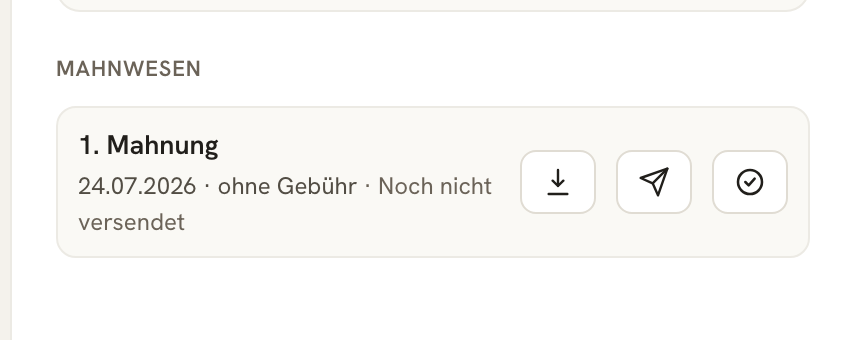
If an invoice is overdue, the invoice view flags it and offers the next Mahnstufe (reminder stage). DolmiDesk™ has three stages; you configure the reminder fee, default interest rate, and new payment deadline for each stage under Settings → Rechnungseinstellungen (invoice settings).
Every Mahnung you create is its own document with a PDF, and you can send it by email or mark it as sent.
After the third stage, the out-of-court Mahnwesen ends – DolmiDesk™ then points you to the formal court dunning procedure (gerichtliches Mahnverfahren). If you don't want to do that by hand, turn on automatische Mahnungen (automatic reminders) for the Kostenträger.
Cancelling and Correcting
An incorrect invoice is not deleted or overwritten – it's cancelled and then reissued. That way, the numbering sequence stays gapless and every step remains traceable.


Three steps: Stornieren (cancel) the invoice – this frees up the jobs again – then Auftrag berichtigen (correct the job), and finally create a Korrekturrechnung (correction invoice) from the cancelled invoice. All three documents – the original, the cancellation, and the correction – are kept and cross-reference each other under Verknüpfte Belege (linked documents). This gives an auditor a complete, traceable picture of what happened.
E-Rechnung and Archive
Every invoice is created as an E-Rechnung in ZUGFeRD format: a normal, human-readable PDF with machine-readable invoice data embedded inside. Public-sector clients increasingly require this – for that, enter the Leitweg-ID on the Kostenträger.
- Herunterladen (download) saves the PDF under the file name you set in Settings.
- If a Beleg-Upload E-Mail (document upload email) is set there, invoices and Mahnungen are automatically also sent to your bookkeeping.
- For your tax advisor or a tax audit, you generate the GoBD-Export under Einstellungen → Datenexport & -import (Settings → Data Export & Import): all documents for a given period, including payments, Mahnungen, the audit trail, and original files.
Auswertung
The Auswertung (analysis) button in the top right opens the invoice analysis: revenue per month, where your revenue currently stands, and what's overdue.
About the author