Your workflow: from phone call to payment
Informationen zum Artikel

Autor: Dmitry Dugarev
This manual has explained many features individually. Now let's bring it all together into one real working day. We'll follow interpreter Maria through a typical assignment.
The scenario
Maria gets a call: her client Maximina Musterfrau needs an interpreter for a doctor's appointment on Thursday, November 13 from 1:00 PM to 3:00 PM at Gerichtsstraße 2 in Frankfurt am Main. It's paid for by the health insurance provider.
Maria agrees – and enters the appointment in her calendar. That's all she does that day.
The calendar entry
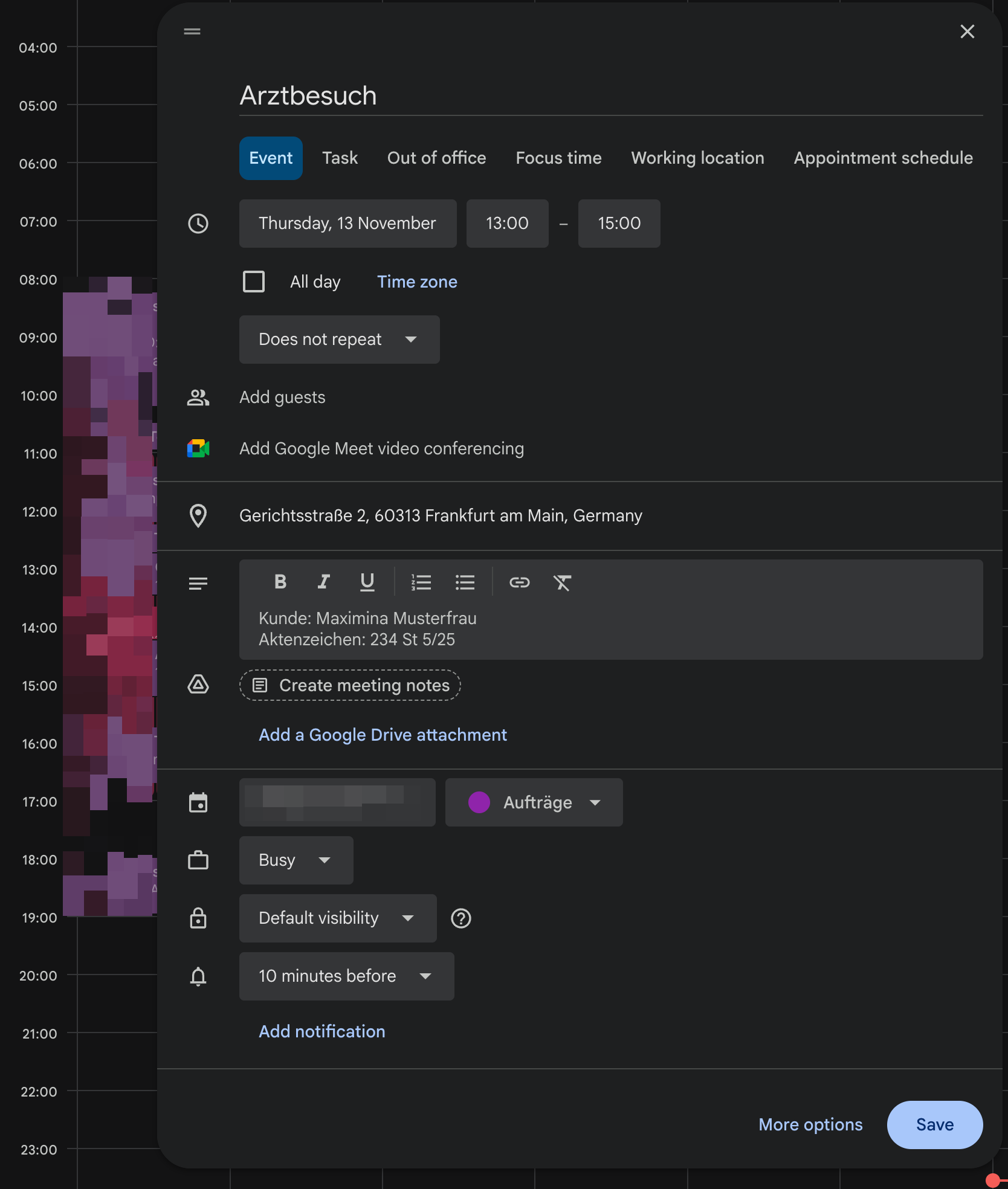
Maria opens her Google Calendar and creates the appointment:
- Title:
Arztbesuch(doctor's visit) – no prefix, it's a normal on-site appointment. - Time: 1:00 PM – 3:00 PM.
- Location:
Gerichtsstraße 2, 60313 Frankfurt am Main– DolmiDesk™ will later calculate the trip from this. - Calendar and color: the calendar it's imported from, in the agreed appointment color.
- Description: a single line.
Kunde: Maximina Musterfrau
After the appointment, Maria attaches the signed Einsatzbestätigung (assignment confirmation) to the calendar entry. That comes along automatically later, too.
The import
Maria doesn't have to do anything for this: she has automatic import switched on, so DolmiDesk™ reads the calendar on its own. (If you'd rather decide for yourself, click Importieren in the jobs list.)
Here's what happens:
- The appointment is created as an on-site job – date, times, purpose, and assignment address come straight from the calendar.
- The client is recognized, and along with her the Kostenträger, the Abrechnungsmodell, and the templates.
- The route is calculated: departure, arrival, and kilometers for the outbound and return trip, including buffer times.
- The Einsatzbestätigung from the calendar is taken over as an attachment.
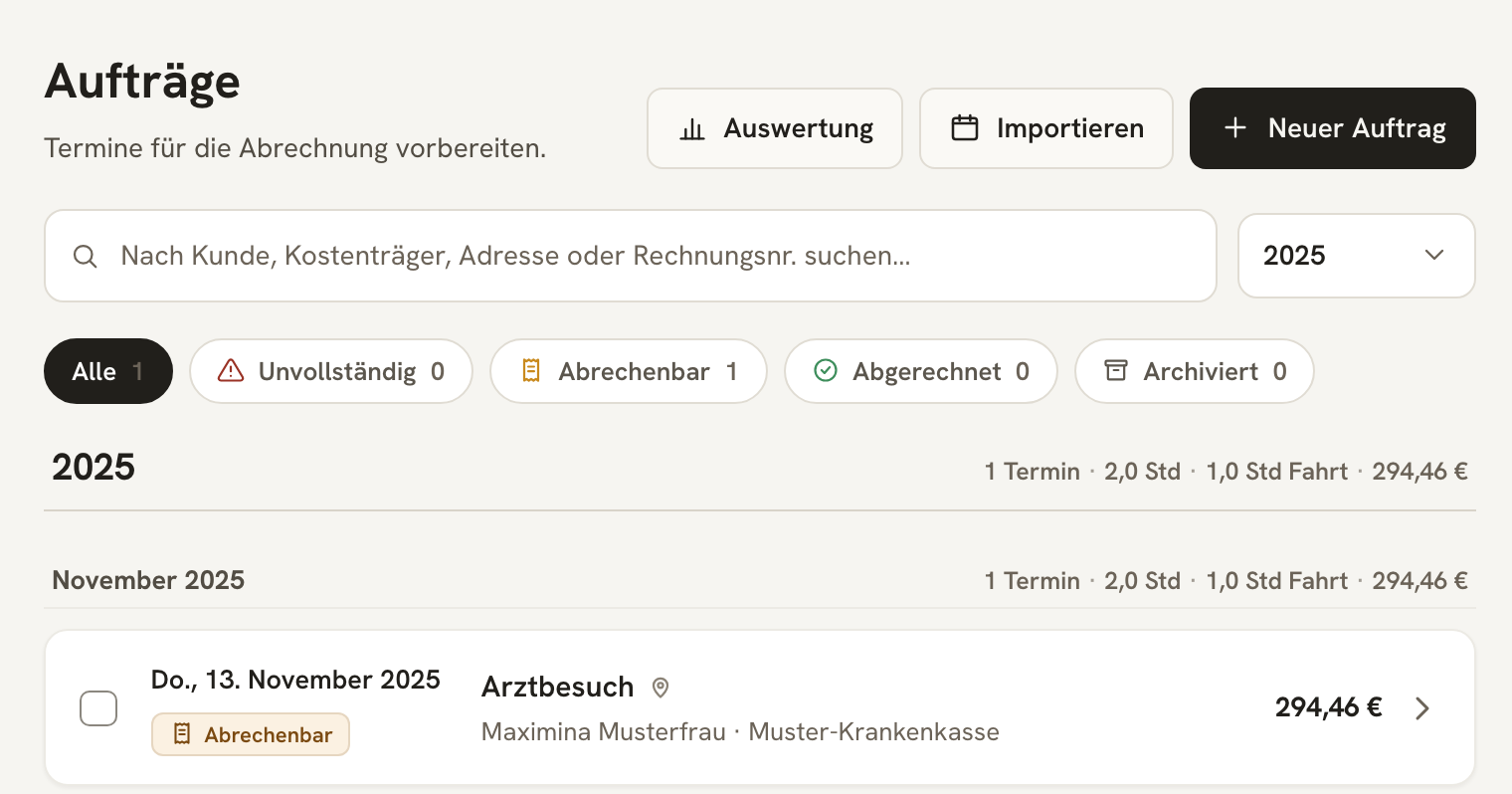
The job shows Abrechenbar (billable), and the amount it will bring in is already shown on the right. If something were missing, it would instead say "2 more fields needed" – Maria would then open the job and fill in the highlighted fields.
Billing
At the end of the week, Maria does her bookkeeping. She opens the job and takes a look at the breakdown.
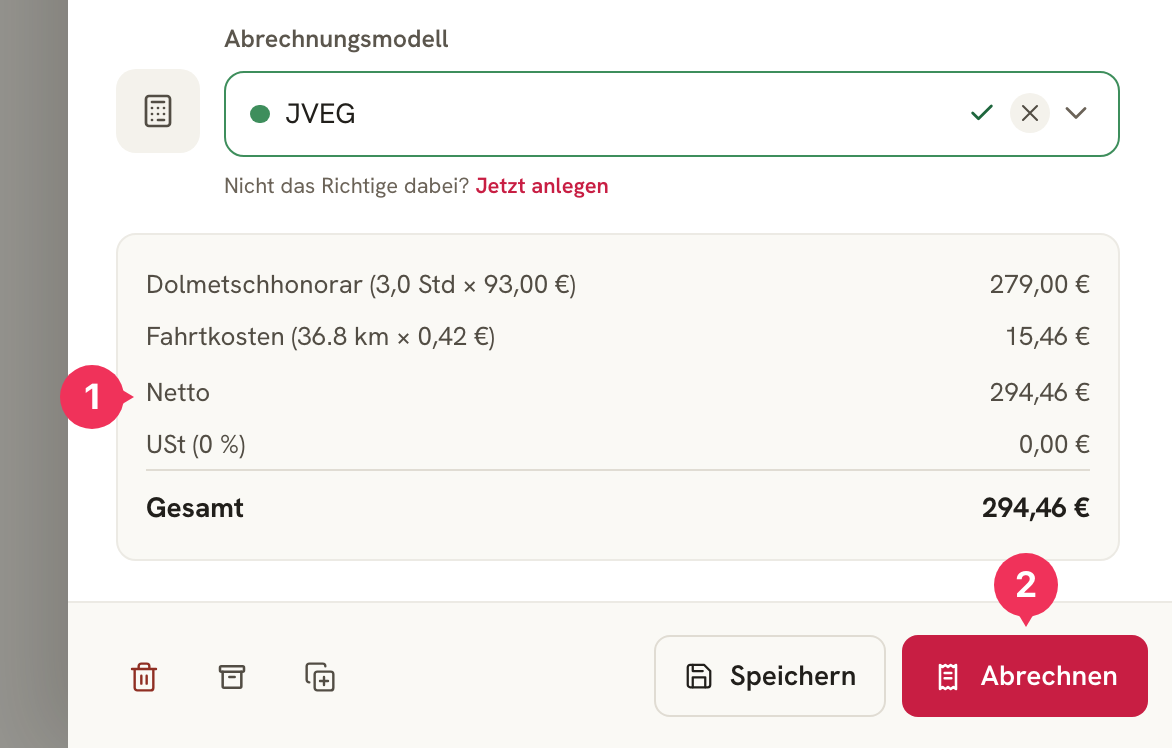
- The breakdown shows two line items. The interpreting time is 3.0 hours, even though the appointment only lasted two hours: JVEG counts travel time as billable time too – one hour in this case. On top of that, there's €0.42 per kilometer driven.
- Abrechnen (bill) generates the invoice.
The finished invoice
A few seconds later, the document is ready.
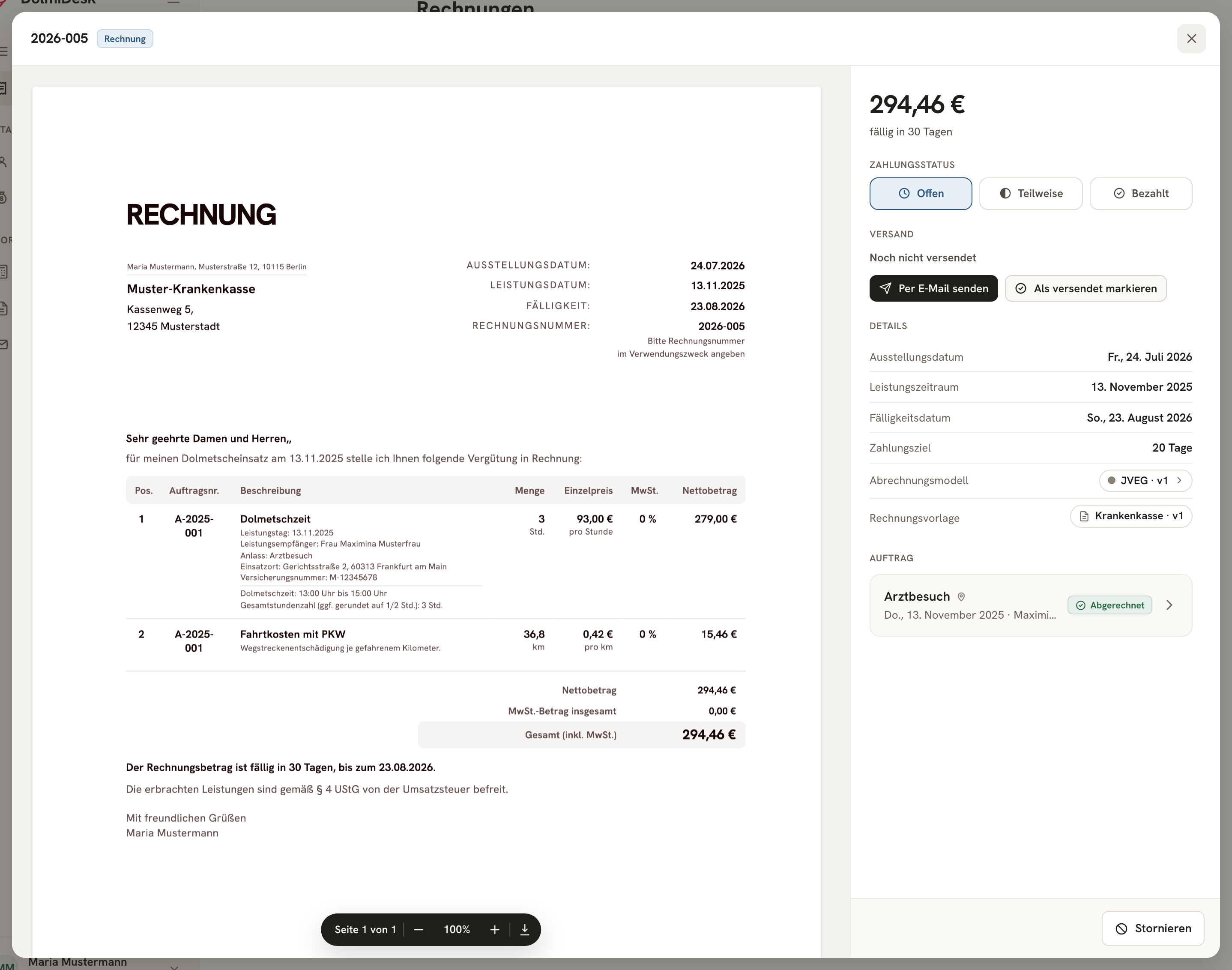
What Maria sees there:
- Invoice number and due date – assigned according to her number format, due according to the health insurance provider's payment terms.
- The line items in the language of the "Krankenkasse" template – including the client's insurance number, which appears there as a placeholder.
- Details showing the versions of the Abrechnungsmodell and template that were used – so it stays traceable what was used to calculate it.
- The job behind it, one click away.
Sending
Maria clicks Per E-Mail senden (send by email). The dialog is already filled in: the health insurance provider's recipient address, subject and body text from her email template, the PDF with embedded e-invoice, and the Einsatzbestätigung as an attachment.
She skims it briefly, clicks E-Mail senden (send email) – done. Replies from the health insurance provider land in her own inbox.
Payment received
Two weeks later, the money has arrived. Maria opens the invoice and sets the payment status to Bezahlt (paid), with the date it came in. That removes it from the outstanding items.
If the payment hadn't arrived, the invoice would have appeared in the list as overdue once the deadline passed – and Maria would have created and sent the first reminder with two clicks.
What Maria did for this job
| Step | Her effort |
|---|---|
| Enter appointment in calendar | about 1 minute |
| Attach Einsatzbestätigung | a few seconds |
| Assign Kostenträger and model | – (from the master data) |
| Determine travel time and kilometers | – (calculated automatically) |
| Create and check the job | – (imported automatically) |
| Create invoice, PDF and e-invoice | one click |
| Prepare email with attachments | – (from the template) |
| Send the invoice | one click |
| Filing and archiving | – (audit-proof, automatic) |
| Record payment received | one click |
A calendar entry becomes a sent, archived invoice – and the only thing Maria really had to think about was the appointment itself.
About the author