Help & Troubleshooting: Solving Common Questions
Informationen zum Artikel

Autor: Dmitry Dugarev
Even an automated system gets stuck sometimes. In the vast majority of cases, all that is missing is one piece of information, or a setting does not match what you expect – and both are fixed in one or two clicks.
This page is organized by where you currently are.
Quick Diagnosis
| Symptom | Usually the cause is … | Check |
|---|---|---|
| No appointment in the import dialog | Color, time window, or wrong calendar | Import |
| Job stays Unvollständig (Incomplete) | missing required fields | Jobs |
| No amount on the job | no Abrechnungsmodell (billing model), or travel data missing | Amounts |
| Amount looks too high or too low | Rounding, or the model's travel-time rule | Amounts |
| Invoice cannot be changed | intentional – GoBD | Invoices |
| Email does not go out | no email address on file for the Kostenträger (cost bearer) | Sending |
| Cannot create a Mahnung (reminder) | invoice is not marked as sent | Sending |
Import & Calendar
The import dialog shows no appointments
Check these in order:
- The right calendar? Under Einstellungen → Konnektoren, Kalender für den Import must be set to the calendar that contains your assignments.
- The color. If you have set a Termin-Farbe (appointment color), only appointments of that color are read in. The colorful dot on the far left means "all colors."
- The time window. The left-hand slider skips the most recent days, the right-hand one limits how far back is read. An appointment from yesterday is still too new under the default setting. Future appointments are never imported.
- Already imported? An appointment that has already turned into a job does not reappear – not even after resyncing.
- Freshly read in? Click Neu synchronisieren (Resync); otherwise the dialog just shows the state from the last sync.
Details under The Import Process.
I changed the appointment – the import still shows the old data
The dialog shows the state from the last sync. Click Neu synchronisieren: the calendar is read in completely fresh, with current titles, times, clients – and a newly calculated Wegkette (travel chain).
If the appointment has already been imported, though, calendar changes no longer affect the job. Correct it directly in DolmiDesk™, or delete the job and import it again.
Client or Kostenträger (cost bearer) not recognized
Symptom: The job shows "(not in the system)" or "No client."
DolmiDesk™ looks for the name from the appointment description in your Stammdaten (master data) – first for an exact match, then a fuzzy one.
- Does the entry exist at all? Create it under Kunden (Clients) or Kostenträger, respectively.
- Does the spelling differ a lot? The comparison is made against Bezeichnung and Name. "Frau Schulz" finds the entry with the Bezeichnung
Frau Schulz– "A. Schulz-Meier" probably will not. - Too generous or too strict? You set the tolerance under Einstellungen → Allgemein → Auftrags-Erkennung.
- For names with two letters or fewer, no guessing is attempted.
Nothing gets lost: the name from the calendar stays visible on the job, so you can assign it by hand.
An on-site appointment was imported as "Online"
If the calendar field Ort (Location) contains a web address – a Zoom, Teams, Meet, Webex, or Skype link, or any https:// link – the appointment automatically counts as an online appointment, even without a prefix in the title. In that case, no travel costs are calculated.
Solution: Enter the real address in Ort, and put the link in the description instead. For a job that has already been imported, simply switch the Typ to Vor Ort (on-site) and have the trip recalculated.
Automatic import is not running
Under Einstellungen → Konnektoren → Häufigkeit des automatischen Imports, the setting must not be Nur manuell (manual only) – otherwise nothing happens in the background, by design. For "weekly" and "monthly," the configured day of the week also matters.
Jobs
The job stays "Unvollständig"
The row tells you how many details are missing; in the opened job, exactly those fields are highlighted. Typical culprits:
- Client or Kostenträger (cost bearer) not assigned.
- Abrechnungsmodell (billing model) missing – it normally comes from the Kostenträger.
- Fahrtdaten (travel data): addresses, times, or distances missing (only for
Vor OrtandAusfall(no-show)). - For
AusfallandAbsage(cancellation): Abgesagt am, Abgesagt durch, and Auftraggeber. - For ÖPNV (public transport): Deutschland-Ticket ticked, or a Ticketpreis.
The complete list is under Completeness check.
Times and distance stay empty
- Address not found: A route is only created if the Startadresse and Einsatzadresse can both be found. Typos, a missing house number, or a missing postal code are the most common cause – fill them in and click Automatisch berechnen (Calculate automatically) again.
- Not an error: For
OnlineandAbsage, "no trip" is the correct result. - Not triggered yet: After every change to addresses or times, you need to click Automatisch berechnen again.
The Wegkette (travel chain) is not right
Symptom: The second appointment of the day calculates the outbound trip from home instead of from the previous assignment.
- Time gap: If more than the configured Max. Stunden je Wegkette passes in between, DolmiDesk™ assumes a trip home. You will find this value under Einstellungen → Allgemein → Fahrt & Route.
- Online or Absage in between: These appointments do not connect anything – the chain deliberately breaks there.
- Changed after the fact: If an appointment is added later, already-imported neighbors are not recalculated. In the affected job, click Automatisch berechnen and choose Als Kette (Fahrt geteilt) (as a chain, trip split) in the dialog.
How the chain works is explained under Chain logic.
I can no longer edit the job
Then it is attached to an invoice and read-only – a corresponding notice appears at the top. To change it, cancel the invoice; that releases the job again. See Cancel and Correct.
A deleted job is back
If it originated from a calendar appointment and that appointment still exists, it will be created again on the next import. Delete the appointment in the calendar – or archive the job instead of deleting it.
Warning: "Zu früh abgesagt" or "Verfällt in N Tagen"
Both are hints, not blocks:
- Zu früh abgesagt (cancelled too early) means the cancellation came in earlier than the Abrechnungsmodell allows for Ausfallkosten (no-show fee) (JVEG 2 days, LWV 2 business days, HessBGGAV 0). You can still bill it – whether it gets paid is up to the Kostenträger.
- Verfällt in N Tagen (expires in N days) is a reminder of the deadline by which the claim must be asserted (JVEG § 2 Abs. 1: drei Monate).
You set both deadlines in the Abrechnungsmodell.
Amounts & Calculation
No amount shows on the job
- No Abrechnungsmodell (billing model) selected: The price only appears once a model is set. It normally comes from the Kostenträger (cost bearer) – check the Abrechnung section there.
- Job still incomplete: The amount appears as soon as everything is documented, including times and distance.
The amount does not match what I expected
Run through the model once: open it under Abrechnungsmodelle and click Modell testen (Test model). There you can see every line item individually.
The three most common surprises:
- Travel time included in the fee: Under the JVEG, travel time counts as billable interpreting time – so the number of hours is higher than the pure Dolmetschzeit (interpreting time), but in return there is no separate travel-time line item.
- Rounding: Billing is rounded up to the next half hour. 1:31 hrs becomes 2,0 hrs – unless you set a Rundungstoleranz (rounding tolerance).
- Staffel (tier schedule): For flat fees, the first tier whose Grenze (threshold) is ≥ the value applies – and the comparison is made against the rounded-up distance or the billed duration.
I changed the model – the old invoice does not change
That is intentional. Every invoice locks in the Version it was calculated with; new rates apply from the next invoice onward. Which version was used is shown on the invoice under Details.
If an already-issued document needs to be recalculated, the way to do that is via Storno (cancellation) and Korrekturrechnung (correction invoice).
Invoices & Sending
I cannot change or delete an invoice
An issued invoice is immutable – even if it has not been sent yet. The GoBD (Germany's principles for proper bookkeeping) require a gapless, traceable numbering sequence.
The path is always: stornieren (cancel) → correct the job → Korrekturrechnung erstellen (create correction invoice). All three documents are kept and reference one another.
The number format can no longer be changed
As soon as the first document has been issued with a format, that format is locked – also a GoBD requirement. You can still set the nächste Nummer (next number), just not the Format anymore.
"Für diesen Kostenträger ist keine Empfänger-E-Mail hinterlegt"
Enter an email address for the Kostenträger (cost bearer) in the Kontakt section. For a one-off send, you can also type an address directly into the An field in the sending dialog.
Without an address on file, the automation stage Erstellen & senden (create & send) is also not available.
The email did not arrive
- Check the address – a typo on the Kostenträger is the most common cause.
- Read the notification: if delivery fails, it shows up as Versand fehlgeschlagen (sending failed) in the daily summary. Turn the notification on under Einstellungen → E-Mail if it is off.
- Spam folder: ask the Kostenträger to check there. Replies go through your own address; sending happens via DolmiDesk™.
- Resend it: on the invoice, there is Erneut per E-Mail senden (resend by email) for that. As long as the sent record is missing, the invoice counts as not sent. How sending works overall is explained under Sending by Email.
I cannot create a Mahnung (reminder)
Three conditions must be met:
- The invoice is marked as sent – there is no reminder for an invoice that was never delivered.
- The previous Mahnstufe (reminder stage) is also marked as sent.
- The invoice is open or partially paid – a paid or cancelled one does not get a reminder.
After the third stage, that is the end of the line: DolmiDesk™ then recommends the formal court dunning procedure (gerichtliches Mahnverfahren).
A file cannot be attached
PDF, PNG, and JPG are allowed, up to 10 MB per file. If you get a message like "could not be read," the file is damaged or not a genuine PDF – open it once and save it again.
If the image is in a cloud service (Google Drive, iCloud), download it to your device first.
Account & Access
"Deine Sitzung ist abgelaufen"
Just log in again. To make this happen less often, tick Angemeldet bleiben (stay signed in) when logging in – on your own device.
Forgot your password, or lost your two-factor code
On the login page, Passwort vergessen? (Forgot password?) leads to a secure link by email. If you have lost access to your authenticator app, use your recovery codes – or contact support (see below).
The account is locked
If your access is temporarily locked, a notice window explains why. Datenexport (data export) and Löschen des Kontos (deleting the account) always remain possible. Contact us via the contact form to resolve the lock.
If Nothing Helps: Write to Us
Via your profile at the bottom left → Kontakt, you can reach us directly from the app.
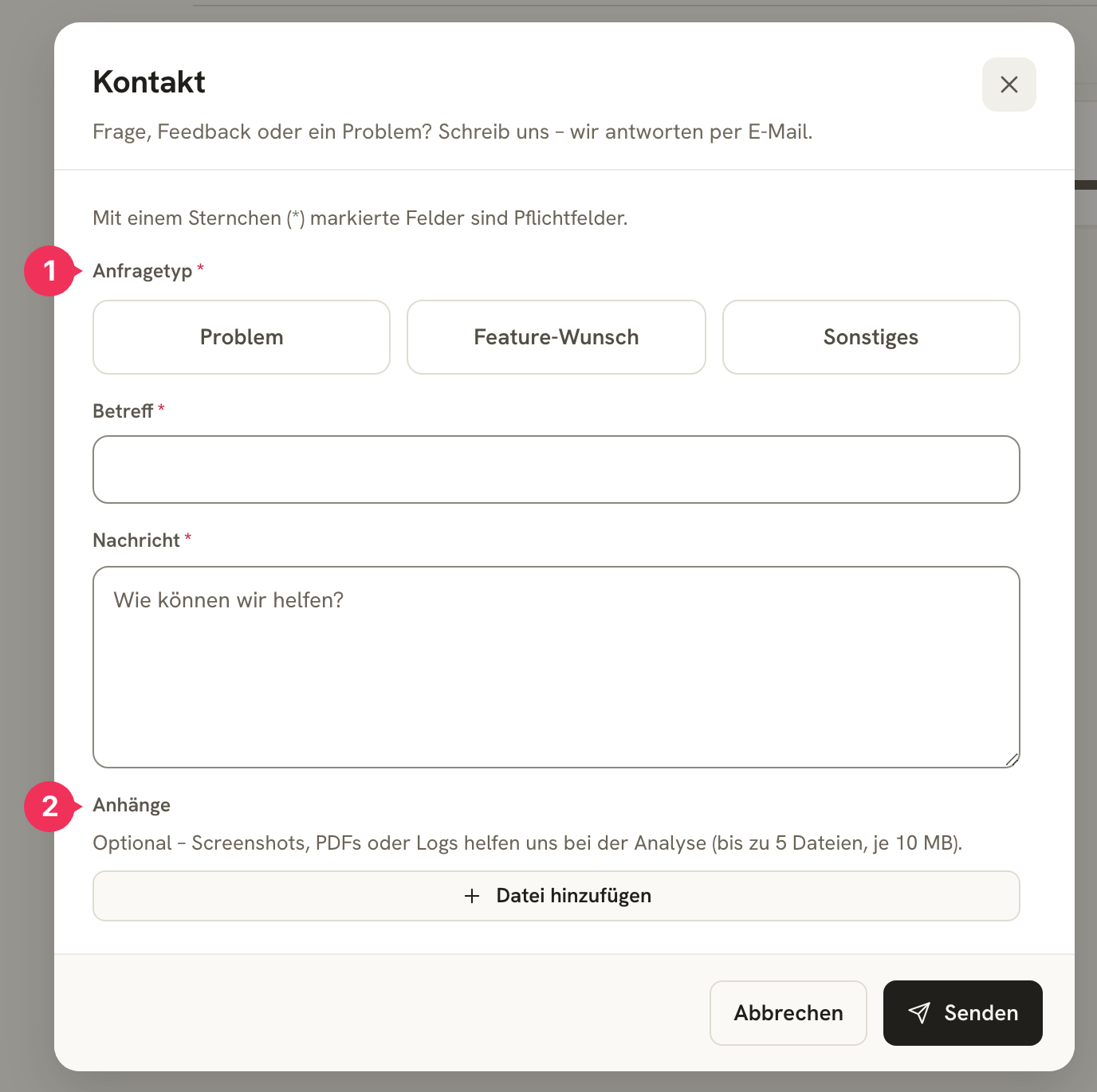
- Anfragetyp (request type) – Problem, Feature-Wunsch, or Sonstiges.
- Anhänge (attachments) – up to five files at 10 MB each. A screenshot of the spot where things are stuck usually saves a whole round of follow-up questions.
Your name, email, and Account-ID are sent along automatically; you will get a copy of your message by email. It also helps us if you tell us:
- What you did (which area, which button).
- What you expected and what happened instead.
- When it happened – an approximate time is enough.
Alternatively, you can reach us at support@dolmidesk.com.
About the author