From Job to Invoice
Informationen zum Artikel

Autor: Dmitry Dugarev
You've imported your appointments and completed the jobs. Now it's time to turn that into a document.
There's no "draft" here that you'd first have to put together yourself: DolmiDesk™ generates the finished invoice outright – complete with number, line items, PDF, and e-invoice. But so that you're never generating it unseen, a preview comes first: you see the finished document before anything actually exists.
The prerequisite
Any job with the status Abrechenbar (Billable) can be billed. That means: the date and times are set, a client and a Kostenträger (cost bearer) are assigned, an Abrechnungsmodell (billing model) is attached, and – for trips – addresses, times, and distances are documented.
The job itself tells you exactly what's still missing; the complete list is under Completeness check.


The three paths
Individually – from the job
Open the job and click Rechnung erstellen (Create Invoice) in the bottom right. Handy if you've just reviewed the job anyway: the breakdown in the Abrechnung (billing) section already shows you exactly the amounts that will appear on the invoice – and the preview afterward shows you the whole document.
In batch – from the job list
Select multiple rows in Jobs. The selection bar appears at the bottom.

- The bar keeps a running total: how many jobs are selected, how many invoices will result, and for what total amount.
- Rechnungen erstellen (Create Invoices) starts the run.
From the Invoices section
The Abrechnen (Bill) button at the top of Invoices opens a list of all billable jobs – without you first having to switch over to Jobs. It's the most convenient way to bill everything at once at the end of the month.
Preview first, then bill
When you bill a single job, you get to see the document before it's created. What you're looking at there isn't a mock-up: DolmiDesk™ calculates and renders the invoice exactly as it would be created – just without saving it and without drawing an invoice number. That's why there's no number on the document yet at this point.
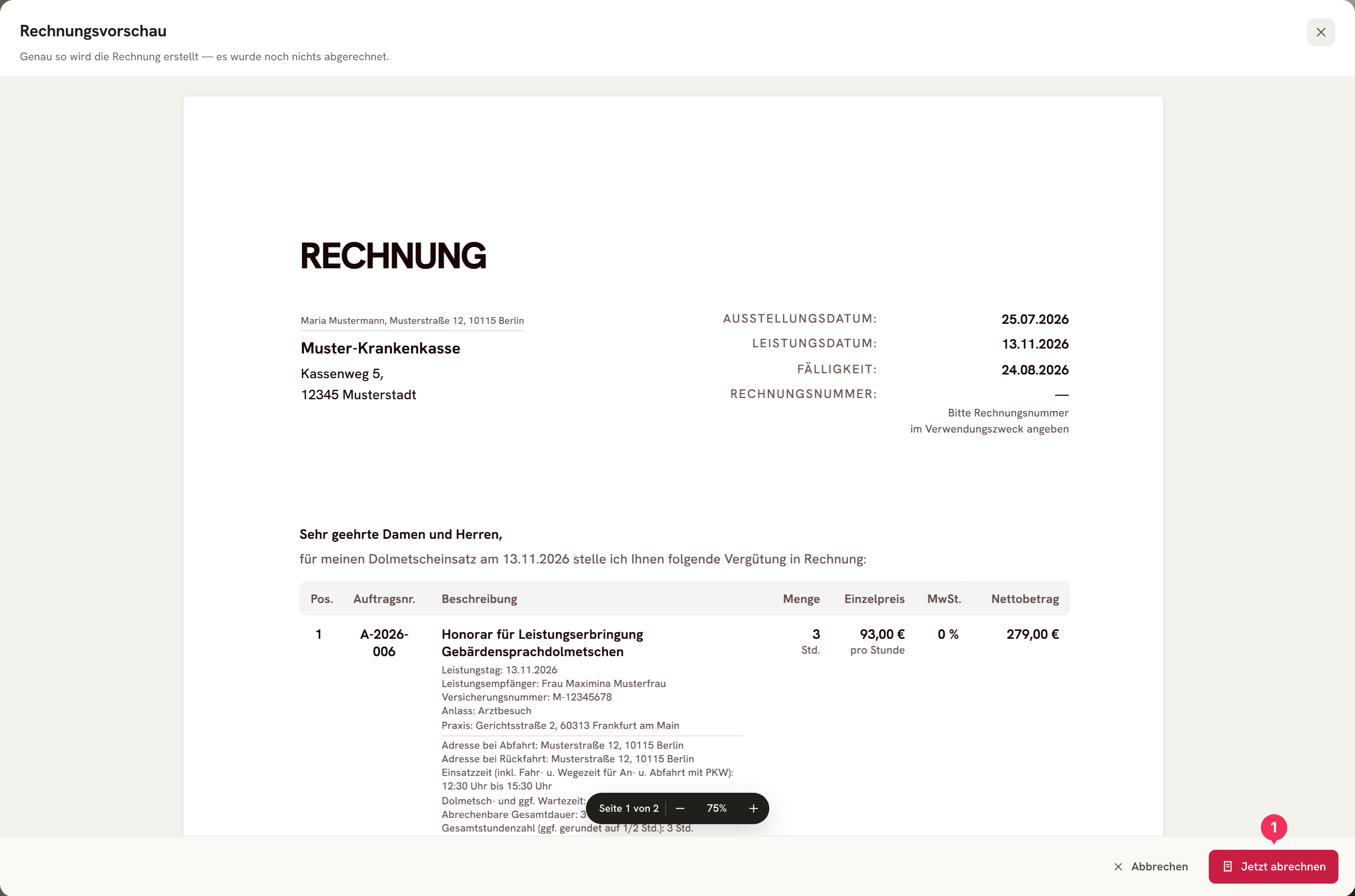
- Jetzt abrechnen (Bill Now) is the step that actually generates the invoice – recognizable by the red color that DolmiDesk™ uses exclusively for buttons of exactly this kind (see Red Means Money).
Abbrechen (Cancel) costs nothing: no document was written, no number was assigned, there's nothing left to reverse. That's exactly what the preview is for – check the address, line items, amounts, and wording, and go back into the job if something's off.
One invoice per Kostenträger
When billing, DolmiDesk™ doesn't stubbornly create one invoice per job – instead, it bundles per Kostenträger: ten jobs for the same Integrationsamt (a German public authority) result in one combined invoice with ten line items, not ten separate invoices. The selection bar flags this in advance as “× Sammel”.
Jobs with different Kostenträger, on the other hand, always end up on separate invoices – if only because the address, payment terms, and template differ.
What happens
While it's being created, DolmiDesk™ shows a progress indicator and switches to the Invoices section – right where the documents are about to land. The progress bar keeps running until the PDFs are actually fully rendered.
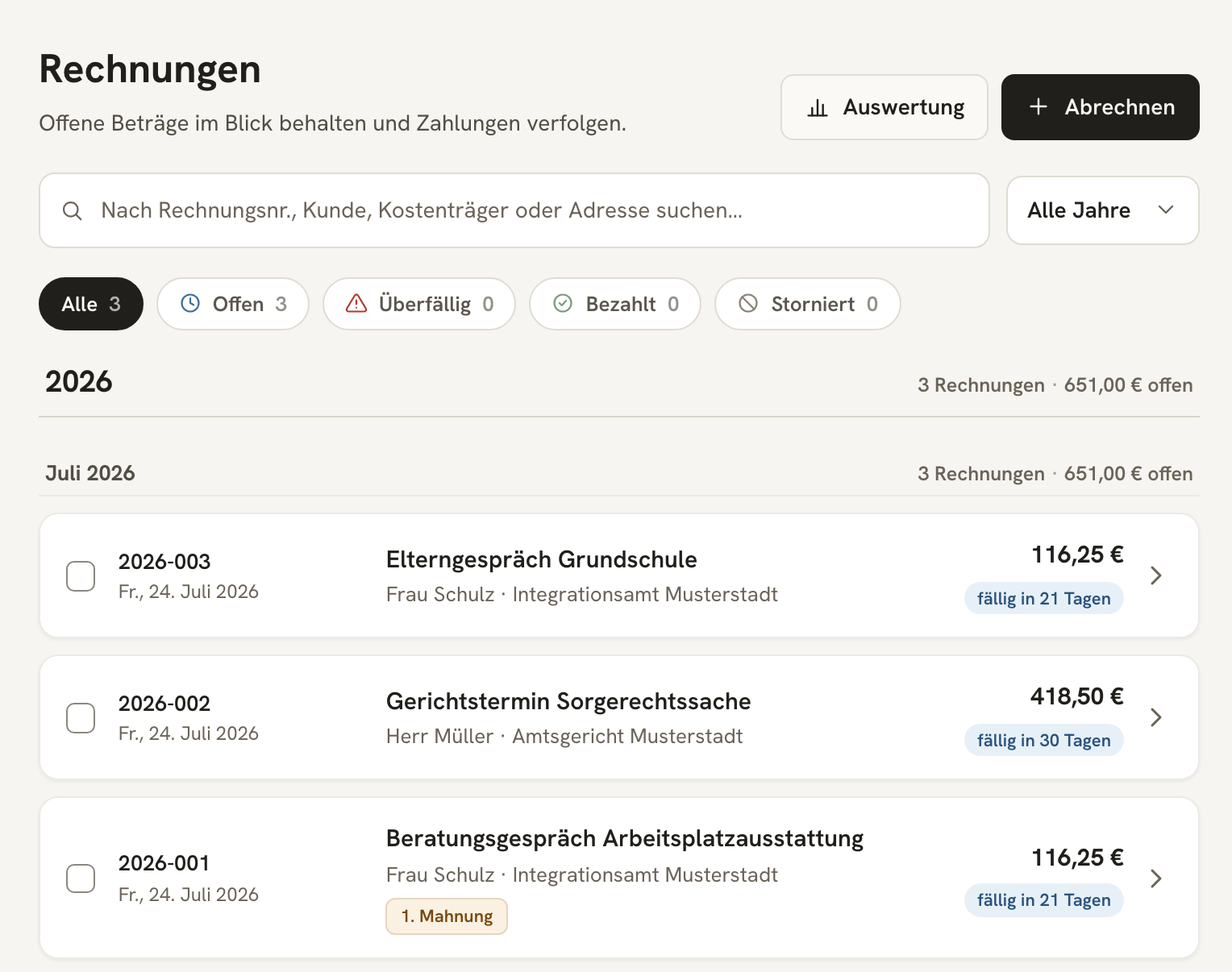
For each invoice, the following happens:
- Number and Date: The next sequential number from your format is assigned, the issue date is today, and the service date comes from the job.
- Due Date: from the Kostenträger's payment terms (otherwise from Einstellungen (Settings)).
- Documents: The PDF and the e-invoice in ZUGFeRD format are generated, and the job's attachments are attached.
- Status Change: The job becomes Abgerechnet (Billed) and therefore read-only, and the invoice is set to Offen (Open).
The snapshot logic
This is the most important thing to understand: when creating the invoice, DolmiDesk™ takes a snapshot of everything that determines the document.
- The version of the Abrechnungsmodell used for the calculation.
- The version of the invoice template the wording came from.
- Your name and address, and the Kostenträger's.
If you raise your rates next year or reword an introductory text, old invoices don't change retroactively. In the invoice view, under Details, you can see which version was used – clicking it opens exactly that version.
A Korrekturrechnung (correction invoice) isn't affected by this: it's a new document and gets recalculated from scratch – using whatever Abrechnungsmodell is attached to the job at that point. That's exactly what makes it a correction. More on this under Cancel and Correct.
Next: send it
The invoice is finished, but it hasn't gone out yet – created doesn't mean sent. Open it, take one last look at the document, and continue with Sending by Email.
When something goes wrong
A created invoice can no longer be edited, nor deleted – not even if it hasn't been sent yet. The GoBD (Germany's principles for proper bookkeeping) require this, and it keeps the invoice number sequence gapless.
The path to a correction is always the same:
- Stornieren (cancel) the invoice – this creates a Stornorechnung (cancellation invoice), and the associated jobs become editable again.
- Correct the jobs.
- From the cancelled invoice, click Korrekturrechnung erstellen (Create Correction Invoice).
The full details are under Cancel and Correct.
About the author