Cancel and Correct: When an Invoice Was Wrong
Informationen zum Artikel

Autor: Dmitry Dugarev
It happens: the invoice has gone out, and then you notice that the hours are wrong, the trip was calculated incorrectly, or simply the wrong Abrechnungsmodell (calculation model) was applied.
Once an invoice has been issued, you cannot simply edit it, nor delete it — not even if no one has seen it yet. The GoBD (Germany's principles for proper bookkeeping) require this, and it's the reason your invoice number sequence stays gapless. Instead, there's a fixed, three-part path: cancel, correct, reissue.


The Process
Cancel
Open the faulty invoice and click Stornieren (Cancel).
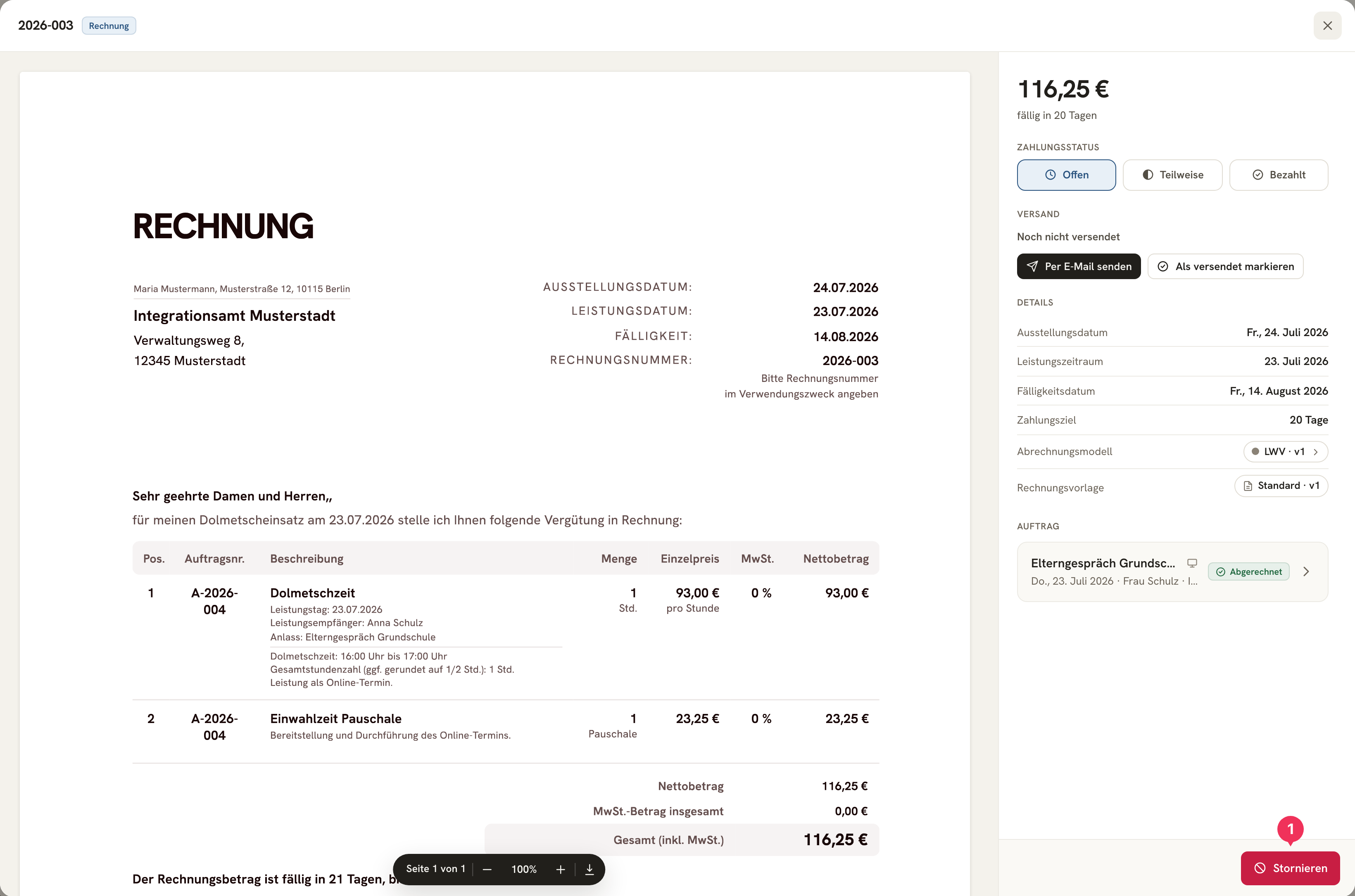
- Stornieren, after a confirmation prompt, creates a Stornorechnung (cancellation invoice) — a separate document with its own number from your cancellation number range, which reverses the amount of the original invoice. The color follows the Red Means Money rule.
The Stornorechnung mirrors the original invoice exactly: the same line items, the same amounts, the same Abrechnungsmodell — just with the sign reversed. After all, it's meant to reverse exactly what was actually billed.
At the same time, DolmiDesk releases the associated jobs again: they're no longer read-only and appear again as Abrechenbar (Billable) in the list.
Correct
Now you fix the cause — in the job, not in the invoice. Depending on what went wrong:
- Correct the times, addresses, kilometers and have the trip recalculated.
- Change the Kostenträger (cost bearer) if the invoice went to the wrong place.
- Change the Abrechnungsmodell (calculation model) if it was calculated using the wrong rule set.
Create the Correction Invoice
Open the cancelled invoice and click Korrekturrechnung erstellen (Create Correction Invoice). Just like with normal billing, you first get the preview: the finished document, without anything actually being created yet.
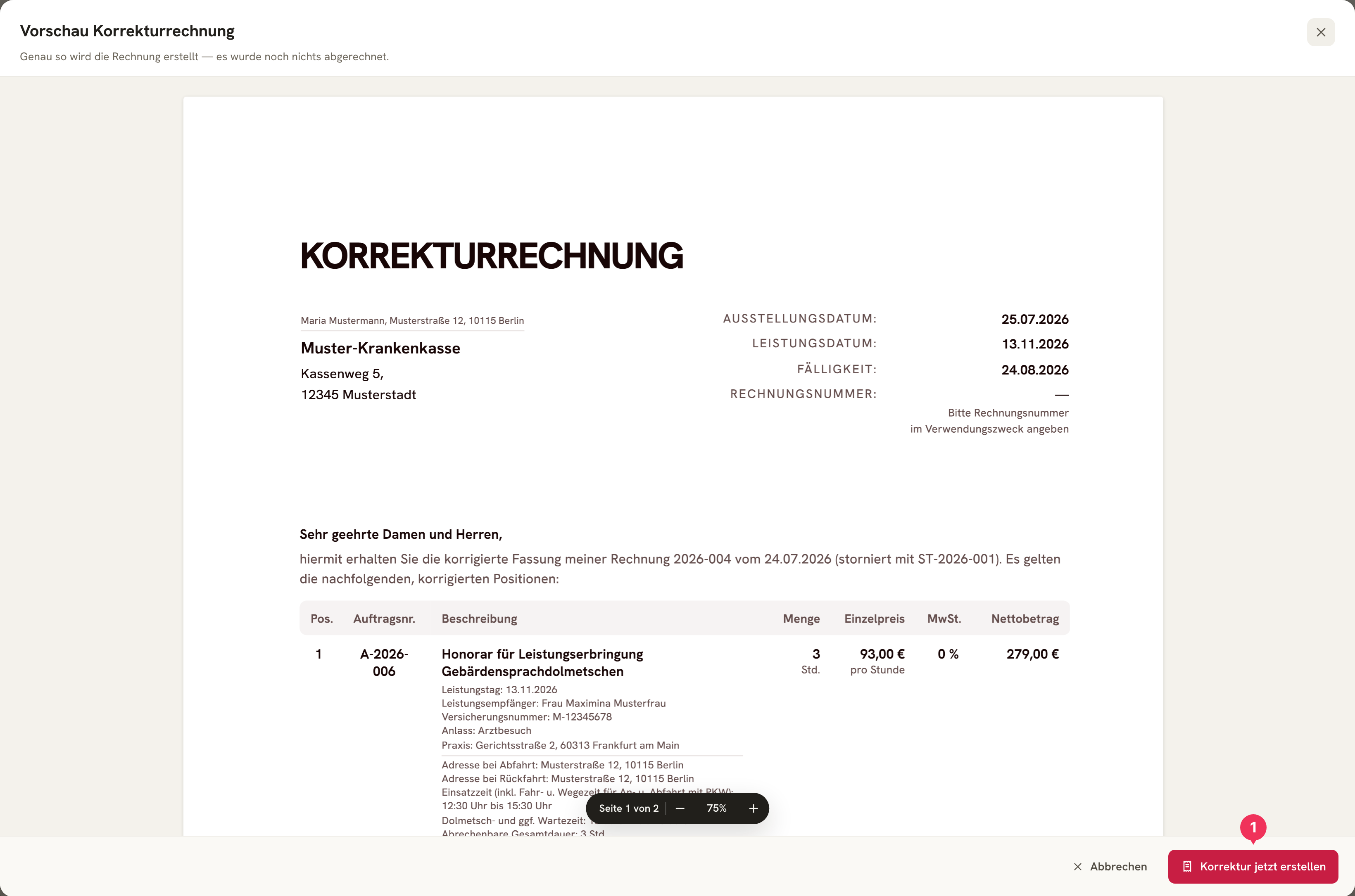
- Korrektur jetzt erstellen (Create Correction Now) finalizes the document — with its own number from the correction number range. Up until then, you can cancel without any consequences.
Check the preview to see whether the amount is now correct. If it isn't, cancel and go back into the job — nothing has happened yet.
What the Correction Is Calculated From
A Korrekturrechnung is not a copy of the old invoice with a new number. It is recalculated from scratch, as if you were billing the released jobs fresh. In detail:
| Component | Where it comes from |
|---|---|
| Line items and amounts | From the jobs as they are now — using the Abrechnungsmodell that is currently set on the job. |
| Texts and labels | From the current invoice template, from its correction texts. |
| Addresses | From your master data, as it is now. |
| Reference to the original | Hard-wired: the correction names the invoice it replaces, and the Storno (cancellation) through which it was released. |
The Stornorechnung is the exception: it deliberately mirrors the original — model version, line items, and amounts — because it has to reverse exactly the amount that was actually billed.
The Document Chain
In the end there are three documents, and all three are kept. Each of them shows, under Verknüpfte Belege (Linked Documents), where it belongs.
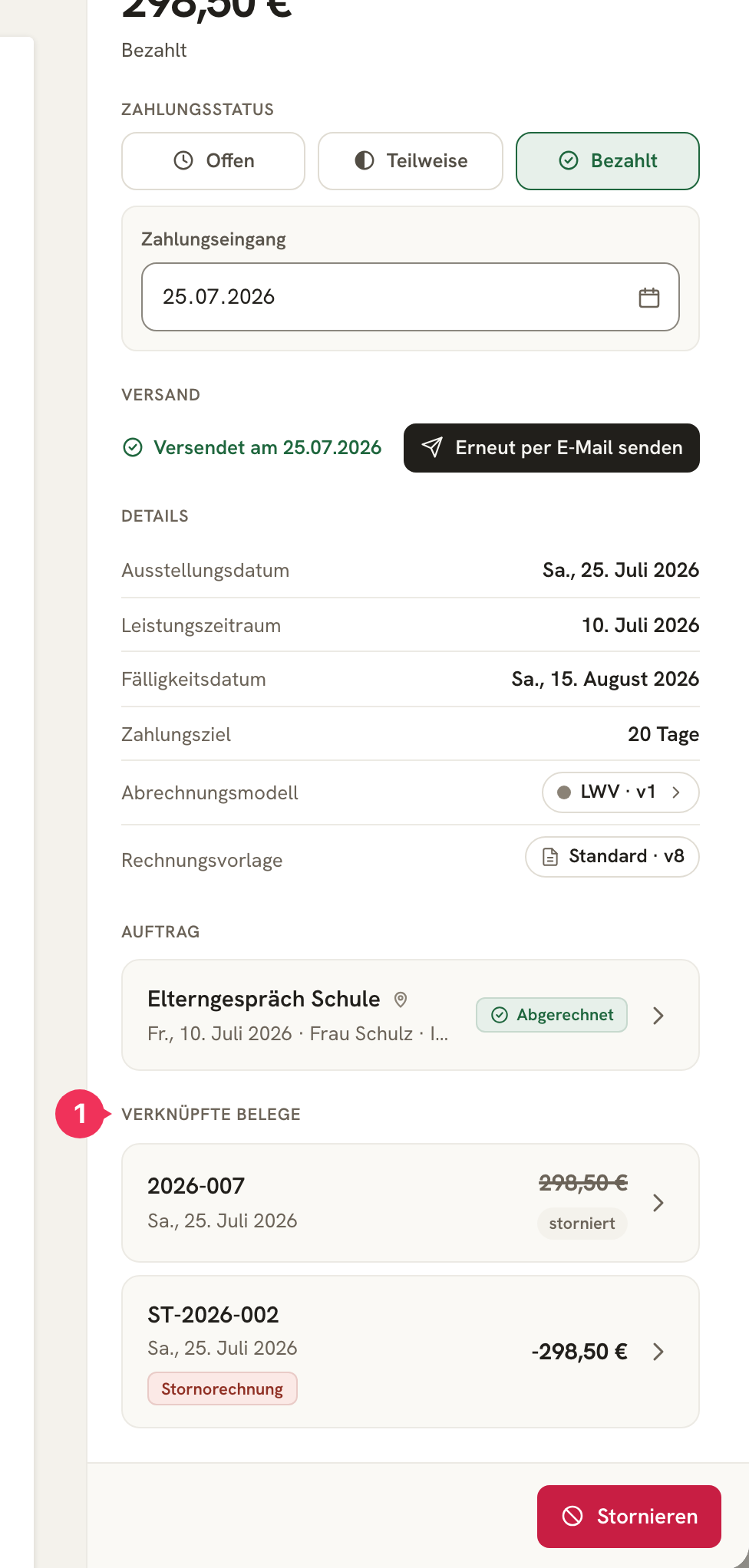
- Verknüpfte Belege — from here you can jump to every document in the chain.
For a tax audit, this makes what happened fully traceable: nothing was deleted and nothing was overwritten — instead, it was reversed and corrected.
Rules That Apply
- Only cancelled invoices can be corrected. Only the cancellation releases the jobs.
- An invoice is replaced once. If the correction itself is wrong, cancel and correct the correction — the chain can continue any number of times.
- Separate number ranges: Stornorechnungen and Korrekturrechnungen are counted separately from normal invoices. You set the formats under Settings.
- Amounts already paid: An invoice that has already been paid can also be cancelled — you then settle the payment (refund or offsetting) outside of DolmiDesk, directly with the Kostenträger.
- Reminders stay in place. If the invoice already had a reminder sent, the reminder history remains visible on the cancelled document — as part of the audit trail, but without further reminder stages.
About the author