The Placeholder System: the Foundation for Templates
Informationen zum Artikel

Autor: Dmitry Dugarev
Whether you're writing an invoice template or an email template: wherever an actual value should later appear, you insert a placeholder.
- In the template: "for my interpreting assignment on
date" - On the invoice: "for my interpreting assignment on 20.07.2026"
Placeholders are building blocks, not text
A placeholder isn't a word you have to spell correctly – it's a building block that you place into the text. In the editor, you see it as a small grey tile in the middle of the sentence. You can delete it like a single character, move it, or keep writing before and after it.
This has a practical advantage: there are no typos. Either the building block is there – or it isn't.
Inserting a placeholder
In every field that supports placeholders, you'll find the Platzhalter einfügen (Insert placeholder) button underneath. Alternatively, just type two curly braces {{ in the text – the same selection menu opens.
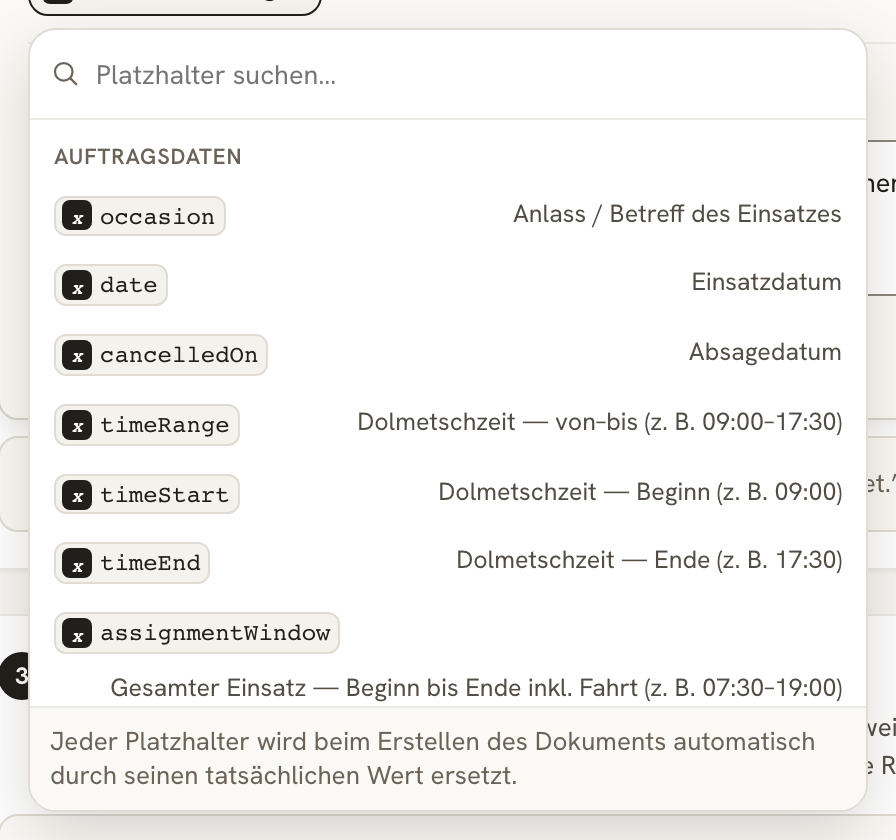
- Place the cursor where the value should go.
- Click Platzhalter einfügen or type
{{. - Search for the right entry – the search filters by name and description.
- Select it. Done.
The available placeholders
Auftragsdaten (Assignment Data)
Everything tied to the assignment itself.
| Placeholder | Value |
|---|---|
occasion | Reason / subject of the assignment |
date | Assignment date |
cancelledOn · cancelledBy | Cancellation date and who cancelled (Merkblatt Punkt 8) |
orderedOn · orderedBy | Date the assignment was commissioned and who commissioned it (Merkblatt Punkt 8) |
timeRange | Interpreting time from–to (e.g. 09:00–17:30) |
timeStart · timeEnd | Interpreting time start and end |
doorToDoorWindow | Door-to-door assignment window: first departure to last arrival, incl. waiting time |
assignmentWindow | The entire assignment with travel folded into the interpreting block, excl. waiting time |
serviceAddress | Assignment address |
startAddress · endAddress | Departure and return address |
What was billed – these values always match the line item's "Menge" (Quantity) column:
| Placeholder | Value |
|---|---|
billableDuration · billedQuantity | Billed quantity for this line item, rounded according to the billing model (= "Menge" column) |
travelHours | Billed travel time (rounded if applicable) |
hourlyRate | Hourly rate for this line item |
unitRate | Unit price for this line item (e.g. a flat fee) |
travelKmRate | Rate per kilometre |
lineTotal | Total amount for this line item |
What was measured – so the Kostenträger (cost bearer) can follow how the rounding was applied:
| Placeholder | Value |
|---|---|
assignmentDuration | Measured assignment duration incl. travel (e.g. 5 hrs 13 min) |
serviceDuration | Measured interpreting duration excluding travel |
travelDuration · travelOutDuration | Measured travel duration, total and outbound only |
travelOutRange · travelReturnRange | Outbound and return trip as a time span |
travelWindow | Travel time window: first departure to last arrival |
travelDistanceKm | Distance travelled in kilometres |
distanceTier | Applied flat-rate distance tier (e.g. "up to 50 km") |
transportMode | Mode of transport (car / public transport) |
ticketDescription | Description of the public transport ticket (incl. Deutschlandticket note) |
ticketReference | Receipt/ticket number of a billable public transport trip |
Kunde (Customer)
| Placeholder | Value |
|---|---|
customerName | Customer's name |
customerBirthDate | Date of birth |
customerInsuranceNumber | Insurance number |
customerFileNumber | File reference number |
Kostenträgerdaten (Cost Bearer Data)
| Placeholder | Value |
|---|---|
recipientName | Name of the cost bearer |
recipientAddress | Address of the cost bearer |
salutation | Salutation (from the cost bearer) |
travelPolicyNote | Travel expense note |
Rechnungsdaten (Invoice Data)
| Placeholder | Value |
|---|---|
invoiceNumber | Invoice number |
serviceDate | Service date |
Only in cancellation and correction texts
| Placeholder | Value |
|---|---|
originalInvoiceNumber | Number of the original invoice |
originalInvoiceDate | Date of the original invoice |
stornoInvoiceNumber | Number of the cancellation invoice |
Only in reminder texts
A reminder (Mahnung) doesn't know about assignment or customer data – it relates to the invoice. That's why there's a separate, smaller set of placeholders here:
| Placeholder | Value |
|---|---|
invoiceNumber | Invoice number |
originalDueDate | Original due date |
newDueDate | New payment deadline |
reminderStage | Reminder stage (1–3) |
outstandingAmount | Outstanding amount |
dunningFee | Dunning fee |
interest | Late payment interest |
total | Total amount (due) |
recipientName · salutation | Name and salutation of the cost bearer |
What happens when a value is missing?
Not every assignment has every value – not every customer has a file reference number, not every trip has a ticket. If an empty placeholder sits in the middle of a sentence, its spot simply stays blank – no error message appears, and no {{…}} shows up in the finished PDF.
Hiding a line when the value is empty
Often, though, the entire line should disappear: "Reason:" without a reason helps no one. You switch this on directly at the placeholder:
Just tap (or click) the placeholder tile in the description – each tap toggles it. The small line icon on the tile shows the current state: three solid lines mean "the line always stays", a dashed middle line means "the line disappears if the value is empty". Hovering over it with the mouse, the tooltip tells you what the next click will do. Without the switch, the line always stays, even with an empty value – so nothing ever happens behind your back. The built-in templates have the switch turned on wherever it makes sense.
By keyboard: Tab takes you to each tile, Enter opens its settings, Delete removes it.
Bedingungen (Conditions): printing lines depending on the situation
Some lines don't depend on a value but on a situation – for example, the legal sentence about public transport expenses should only appear on invoices where the trip was actually billable (not for a trip made with a Deutschlandticket). For this, the placeholder selection menu has a group called Bedingungen (Conditions):
- Place the cursor in the relevant line and insert the condition (e.g. "Fahrt mit Deutschlandticket" – trip made with a Deutschlandticket).
- A dashed tile appears at the start of the line, something like "nur ohne: Deutschlandticket" (only without: Deutschlandticket).
- Tapping the tile opens its settings: there you choose whether the line is printed only if the condition is true or only if it isn't – or remove the condition again.
The tile itself doesn't print anything; it only controls whether its line appears on the invoice.
About the author