The Areas of the App: Overview
Informationen zum Artikel

Autor: Dmitry Dugarev
Welcome to the heart of DolmiDesk. While the calendar is your input tool, the real work happens in the app.
Everything you do there takes place in just a few areas. You'll find them on the left in the navigation, and they're deliberately ordered the way the data flows: from the things you set up once to the things you touch every day.
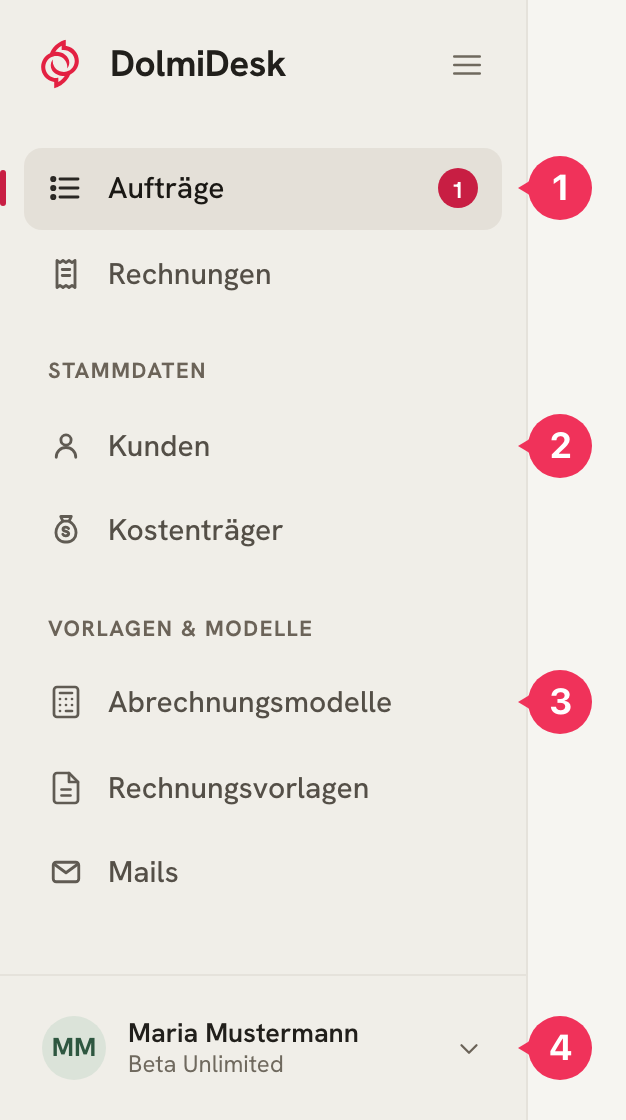
- Day-to-day work – Aufträge (jobs) and Rechnungen (invoices). This is where you work.
- Stammdaten (master data) – Kunden (clients) and Kostenträger (cost bearers): who you interpret for and who pays.
- Vorlagen & Modelle (templates & models) – the rules and texts that billing follows.
- Your profile – from here you open Settings and log out.
Every area works the same way: you see a searchable list, and clicking an entry opens it in a panel on the right edge. Whatever you change there takes effect immediately – there's no “Save and Close” ritual.
The Data Flow
The areas aren't isolated, they build on each other. Data moves from Stammdaten (master data, static) to Bewegungsdaten (transactional data, daily).


The Kostenträger is the hub: the Abrechnungsmodell, the Rechnungsvorlage, and the Mail-Vorlage all hang off it. The Kunde points to their default Kostenträger. That's why the line Kunde: … in the calendar entry is enough – the rest follows on its own.
Your Library
You set up these areas once and only touch them again when something fundamental changes.
- Abrechnungsmodelle (billing models): The rate logic – hourly rates, travel time, mileage, flat fees, surcharges, and cancellation scales. Every change creates a new version, so old invoices stay untouched.
- Rechnungsvorlagen (invoice templates): What the line items on the invoice are called and how they're described – and the texts for cancellations, corrections, and reminders. More on this in the Template System.
- Mails: The subject and body of the emails that send out invoices and reminders. More on this under E-Mail Vorlagen.
- Kostenträger: Who pays – court, Integrationsamt (integration office), health insurance fund, company. With address, Anrede (salutation), Zahlungsziel (payment term), and the assignment of model and templates.
- Kunden: The people you interpret for. They bring their default Kostenträger with them.
Your Day-to-Day Work
- Aufträge: Your inbox. This is where appointments from the calendar land, where you fill in whatever's still missing, and where you bill from.
- Rechnungen: Your records. Created, sent, paid, and cancelled invoices, complete with Mahnwesen (reminder management) and the audit-proof document archive.
Both areas have an Auswertung (analytics) in the top right: the job analysis shows volume, billing status, and hours worked; the invoice analysis shows revenue, open amounts, and anything overdue.
What Applies Everywhere
- Einstellungen (Settings) apply to your entire account – from the start address to the number ranges (Nummernkreise) all the way to Mahnwesen. They have their own page: System Settings.
- Search and filters work the same way in every list: search at the top, filter by status below that.
- Nothing gets lost: Rechnungen are never deleted, only cancelled; Aufträge that belong to an invoice are protected against changes.
Red Means Money
DolmiDesk uses its signal color sparingly, and always by the same rule: red marks exactly the button that creates or reverses a document. So red doesn't mean “important” and it doesn't mean “careful” – red is the moment an invoice number gets assigned.
| Color | Meaning | Examples |
|---|---|---|
| Red | Creates or cancels a document – for good. | “Jetzt abrechnen” (Bill Now), “Korrektur jetzt erstellen” (Create Correction Now), “Stornieren” (Cancel) |
| Black | The step before that: for now, it just shows a preview. | “Rechnung erstellen” (Create Invoice), “Korrekturrechnung erstellen” (Create Correction Invoice) – both open the preview |
| Neutral (light/gray) | Everything else, even when it's important. | Speichern (save), Suchen (search), Filtern (filter), Herunterladen (download), Duplizieren (duplicate) |
The difference between black and red is the important one here: two buttons deliberately carry the same label – the black one opens the preview, the red one inside that preview actually triggers the action. As long as you've only clicked black, nothing has happened, and you can cancel without any consequences.
Choose an Area to Learn More:
System Settings
Every DolmiDesk setting explained – from your starting address to number ranges and reminder management.
Calculation Models
How you define hourly rates, travel costs, no-show flat fees, and surcharges – and test them before the first invoice goes out.
Kostenträger
Who pays the invoice – with address, Abrechnungsmodell, templates, Zahlungsziel, and automation.
Clients
The people you interpret for – and how they bring along their Kostenträger.
Jobs
The list of your assignments: status, completeness, travel data – and the path to the invoice.
Invoices
Create invoices, send them, track payments, send reminders, cancel, and correct them.
About the author