The Import Process: From Calendar to Job
Informationen zum Artikel

Autor: Dmitry Dugarev
At the heart of DolmiDesk™ is turning your calendar appointments into fully prepared jobs.
This article explains the whole flow: how you enter appointments, how the system interprets them (the logic), and what arrives in Aufträge (Jobs) once imported.
Before you start
For an appointment to be "seen" at all, three rules apply. You set all three under Einstellungen → Konnektoren (Settings → Connectors) (see Getting Started):
- The calendar: Only the calendar you selected under Kalender für den Import (Calendar for import) is read.
- The color: If you've chosen a Termin-Farbe (appointment color), only appointments of that color are imported – ideal for keeping private appointments out. With "all colors," every appointment in the calendar counts.
- The time window: Only what falls within the configured Alter (age) is imported – not older than the right-hand slider and at least as old as the left-hand one. Future appointments are never imported.
How and when is importing done?
Open Aufträge → Importieren (Jobs → Import). The dialog shows you every appointment found as a preview – exactly as it would arrive as a job.
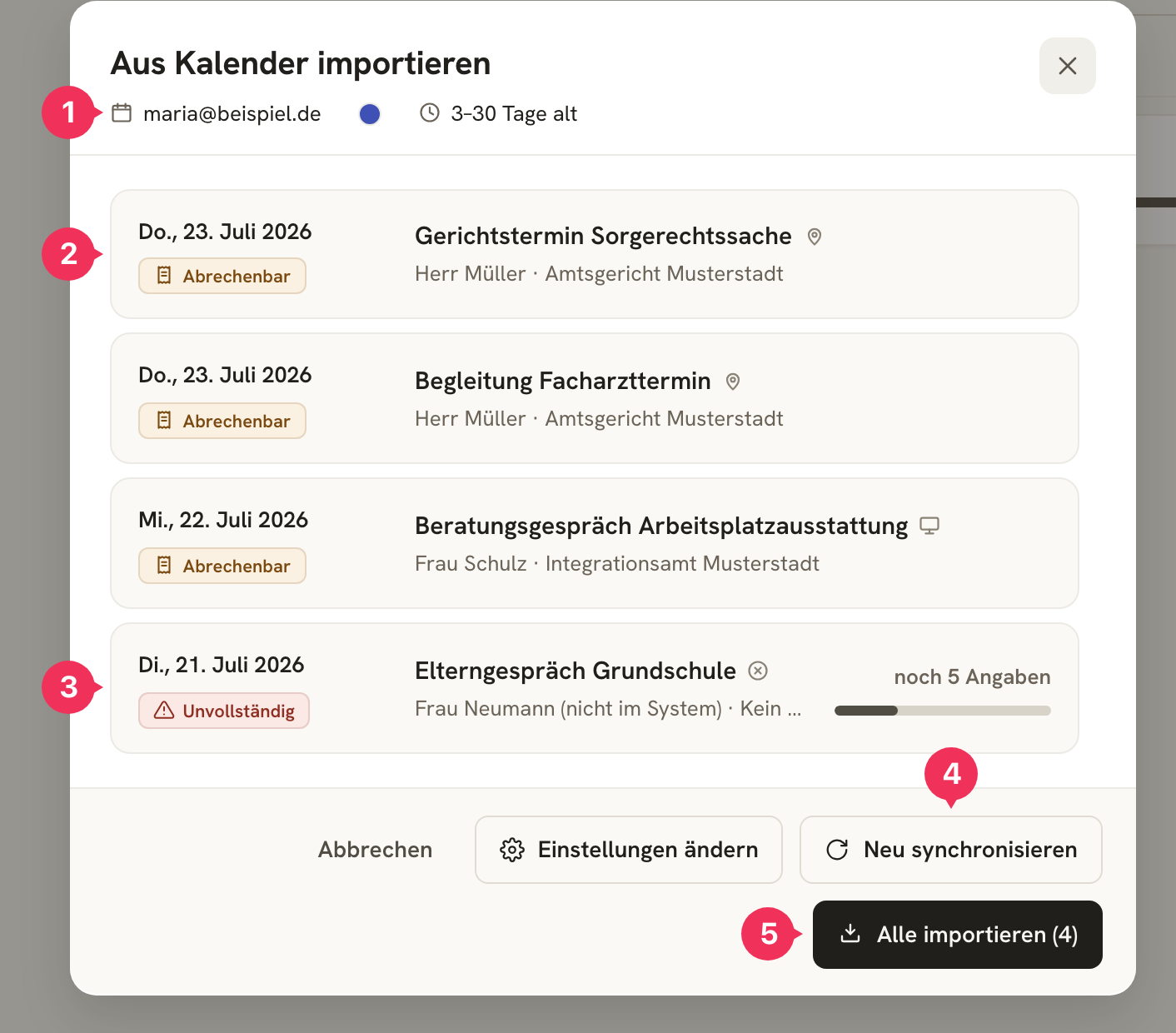
- The header shows what's currently being imported from: calendar, color, and time window.
- Each row is a preview of the future job – with date, occasion, client · Kostenträger, and the projected amount.
- Incomplete appointments are imported anyway. The preview only tells you in advance how many details you'll still need to fill in afterward.
- Neu synchronisieren (Resync) re-reads the calendar fresh – the right button to press after any change to an appointment.
- Alle importieren (Import all) creates jobs from every appointment shown. There's deliberately no way to select individual ones: whatever you don't want to import, you keep out via color and time window.
The calendar as an input form
You use Google Calendar not just for scheduling, but to feed data into the system. That's the logical place for it: you're managing your appointments there anyway and already have all the information at hand – we just need it in the job as well.
The system automatically reads these fields:
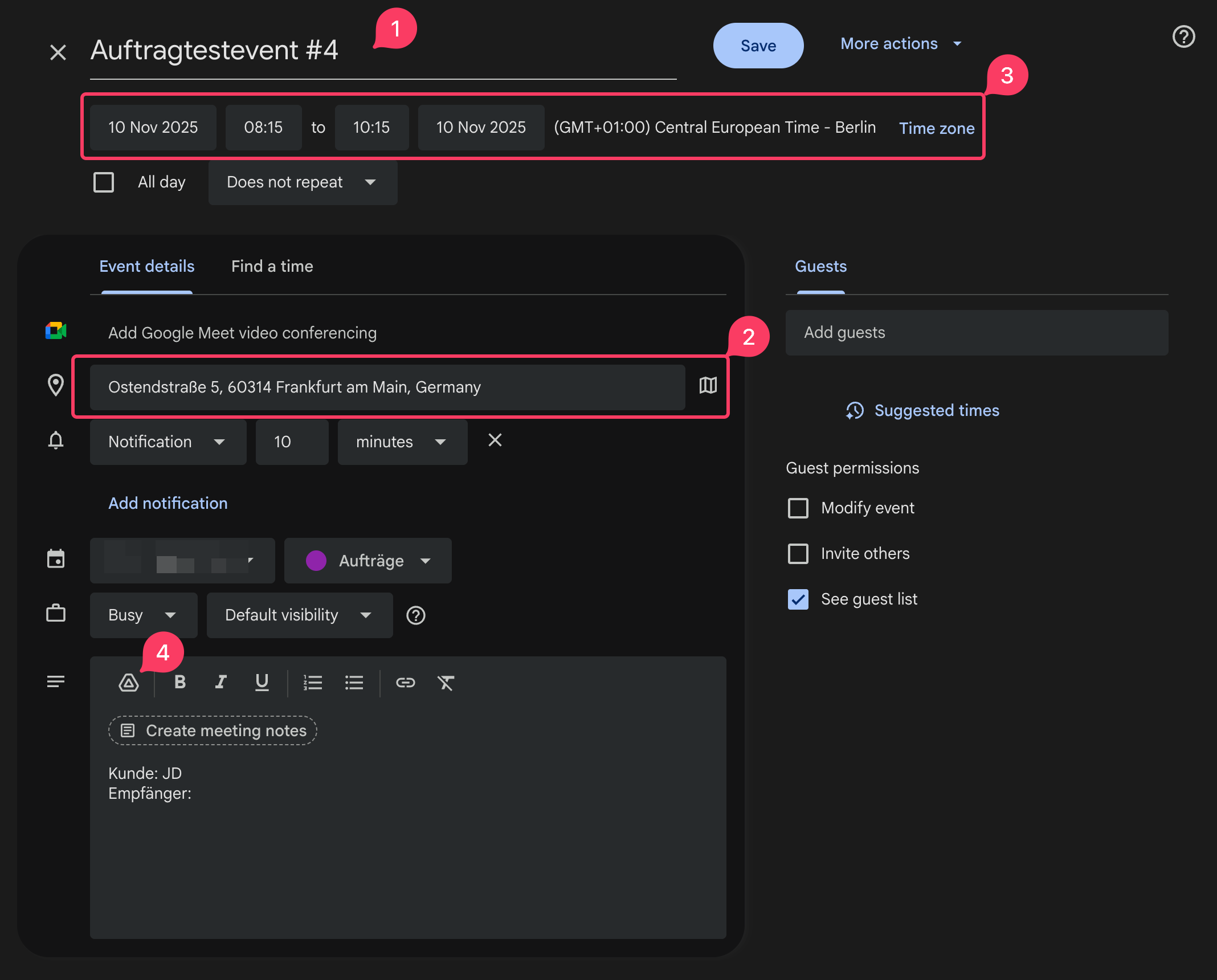
Here's the overview:
| Calendar field | Target in the job | Function |
|---|---|---|
| 1. Titel (Title) | Anlass and Typ | Describes what was done. A prefix (see below) controls the billing type and is removed from the Anlass. |
| 2. Ort (Location) | Einsatzadresse | Target of the route calculation. |
| 3. Datum/Zeit (Date/Time) | Einsatzdatum, Beginn, Ende | Basis for the fee and travel chains. |
| 4. Beschreibung (Description) | Kunde, Kostenträger, and others | Fields the calendar doesn't know about (see The Description). |
| 4. Anhänge (Attachments) | Anlagen | Files attached to the appointment (run sheets, assignment confirmations) are imported along with it and are ready on the job. |
Type detection (control codes)
Via the Titel (Title), you tell the system how the job should be billed. The keyword must be right at the start.
| Prefix in the title | Type | Effect on billing |
|---|---|---|
[Online] … | Online | • No travel costs. • No addresses. • Possibly an online flat rate. |
[Ausfall] … | Ausfall (cancellation fee) | • Full travel costs (you were on site). • Fee according to the cancellation-fee scale. |
[Absage] … | Absage (cancellation) | • No travel costs (you never set off). • Fee according to the cancellation-fee scale. |
| (no prefix) | Vor Ort (on-site) | • Standard: fee by time + travel costs. |
The square brackets are optional: Ausfall: Amtsgericht, Absage – Herr Meier, or Online Beratung all work just as well. The system also recognizes the spellings abgesagt, storniert, ausgefallen, no-show, remote – in German, English, and Russian alike.
Example:
- Calendar:
[Ausfall] Gerichtstermin Müller - Job:
Anlass= "Gerichtstermin Müller",Typ= Ausfall, billed according to the cancellation-fee scale + full travel costs.
The control code is therefore removed and does not end up in the Anlass.
The description: additional information
In the appointment's description field, you pass along data that Google Calendar doesn't know about. Syntax: Key: Value, one entry per line.
Kunde: Max Mustermann
Kostenträger: Polizei Frankfurt
DolmiDesk™ understands these keys:
| Key | Also recognized as | Effect |
|---|---|---|
Kunde (Client) | Kundin, Klient, Client, Customer, Клиент | Assigns the job to this client. |
Kostenträger | Empfänger, Payer, Recipient, Плательщик | Sets the Kostenträger who receives the invoice. |
Einsatzadresse | Einsatzort, Adresse, Ort, Address, Адрес | Overrides the address from the calendar's "Ort" field. |
Transportmittel (mode of transport) | Transport, Verkehrsmittel, Fortbewegung, Транспорт | Sets the mode of transport for this one appointment. |
Every other line in the description is ignored – so your own personal notes don't get in the way.
For Transportmittel, the system understands the common words: Bahn, Zug, ÖPNV, Bus, and Tram mean public transport, Auto, PKW, or Wagen mean driving by car, and kein or zu Fuß mean: don't calculate any travel. If nothing is specified, your default mode of transport from the settings applies.
How the system decides
Your entry in the description
Whatever you write there wins. Kostenträger: Polizei Frankfurt applies even if something different is stored for the client.
- Scenario: The client "Max Mustermann" normally bills via the Amtsgericht. This time, the police are paying.
- Solution:
Kunde: Max Mustermann
Kostenträger: Polizei Frankfurt - Result: The job gets the police as its Kostenträger – provided they exist in your Kostenträger master data.
The default from the master data
If you don't name a Kostenträger, DolmiDesk™ uses the client's default Kostenträger. That's why, in the vast majority of appointments, a single Kunde: … line is enough.
The data from the calendar
For everything else – occasion, address, date, and times – the calendar fields themselves apply.
Typos are allowed
If DolmiDesk™ doesn't find a name verbatim in the master data, it searches for the most similar entry (Levenshtein distance [1]). So Kunde: Max Mustrmann still becomes Max Mustermann.
The comparison is made against both the Bezeichnung (display name, e.g. "Frau Schulz") and the full name (e.g. "Anna Schulz") – so you can write whatever comes more naturally in your calendar.
How generously the search is applied – and whether it's applied at all – is something you set under Einstellungen → Allgemein → Auftrags-Erkennung (Settings → General → Job recognition).
Chain logic (travel costs)
The system detects whether you have several appointments on the same day. The rule: If less than 2 hours pass between the end of appointment A and the start of appointment B (adjustable under Einstellungen → Allgemein → Max. Stunden je Wegkette (Settings → General → Max. hours per travel chain)), they form a chain.


Travel-cost scenarios in detail
Here are the five most important scenarios:
-
Single appointment:
- You travel:
Home → Appointment → Home. - Billing: full outbound trip + full return trip.
- You travel:
-
The chain (appointments A and B lie close together):
- You travel:
Home → Appointment A → Appointment B → Home. - Appointment A: full outbound trip (from home). The return leg is halved, since you're not actually driving home; the next appointment carries the other half.
- Appointment B: half outbound trip (the leg from A to B), full return trip (home).
- You travel:
-
Chain interrupted (break > 2 h):
- You travel:
Home → Appointment A → Home, break,Home → Appointment B → Home. - The system assumes you went home in between, and bills both appointments separately.
- You travel:
-
Online within the chain:
- An
Onlineappointment never generates travel costs – and it doesn't link appointments together either. - For
Appointment A (Vor Ort) → Appointment B (Online) → Appointment C (Vor Ort), billing is calculated as if you drove home after A and set off again for C.
- An
-
Absage (cancellation):
- An
Absageappointment generates no travel costs and is excluded from the chain logic – after all, you never traveled there. - An
Ausfall(cancellation fee), on the other hand, counts as a real trip and chains normally with its neighbors.
- An
Controlling the mode of transport
By default, your default mode of transport from the settings applies. Per appointment, you can override it with Transportmittel: Auto in the description, and in the finished job you can change it at any time – the route is then recalculated.
What happens on import
Every appointment becomes a job – and a fully prepared one at that:
- It gets its Auftragsnummer (job number) in the format from your settings.
- The route is calculated: outbound and return trips with times and kilometers, including the buffer times before and after the appointment. Exactly what the Automatisch berechnen (Calculate automatically) button on the job does.
- Attachments from the appointment are downloaded and attached to the job as Anlagen.
- Via the Kostenträger, the Abrechnungsmodell (billing model) is applied – so a price appears in the list right away.
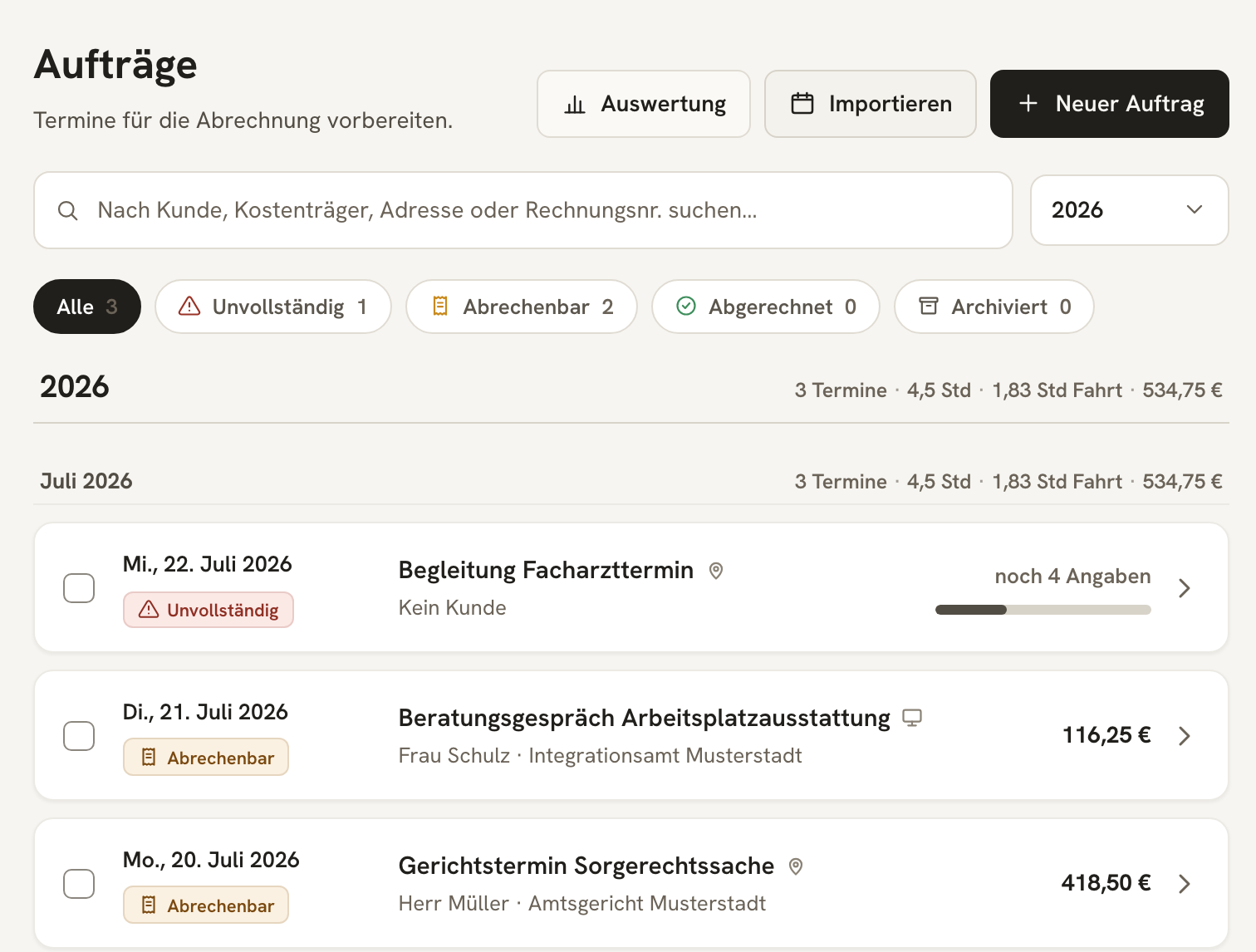
An appointment that's already been imported once never reappears in the import dialog – not even after a fresh sync. However, if you delete the associated job without deleting the calendar appointment itself, it will be offered again on the next import.
Completeness check
After importing, DolmiDesk™ checks whether everything needed to bill is in place. You see the result as a status on each job:
- Unvollständig (Incomplete) – something is still missing. The list shows how many pieces of information are missing.
- Abrechenbar (Billable) – the job can go into an invoice.
- Abgerechnet (Billed) – it's already attached to an invoice.
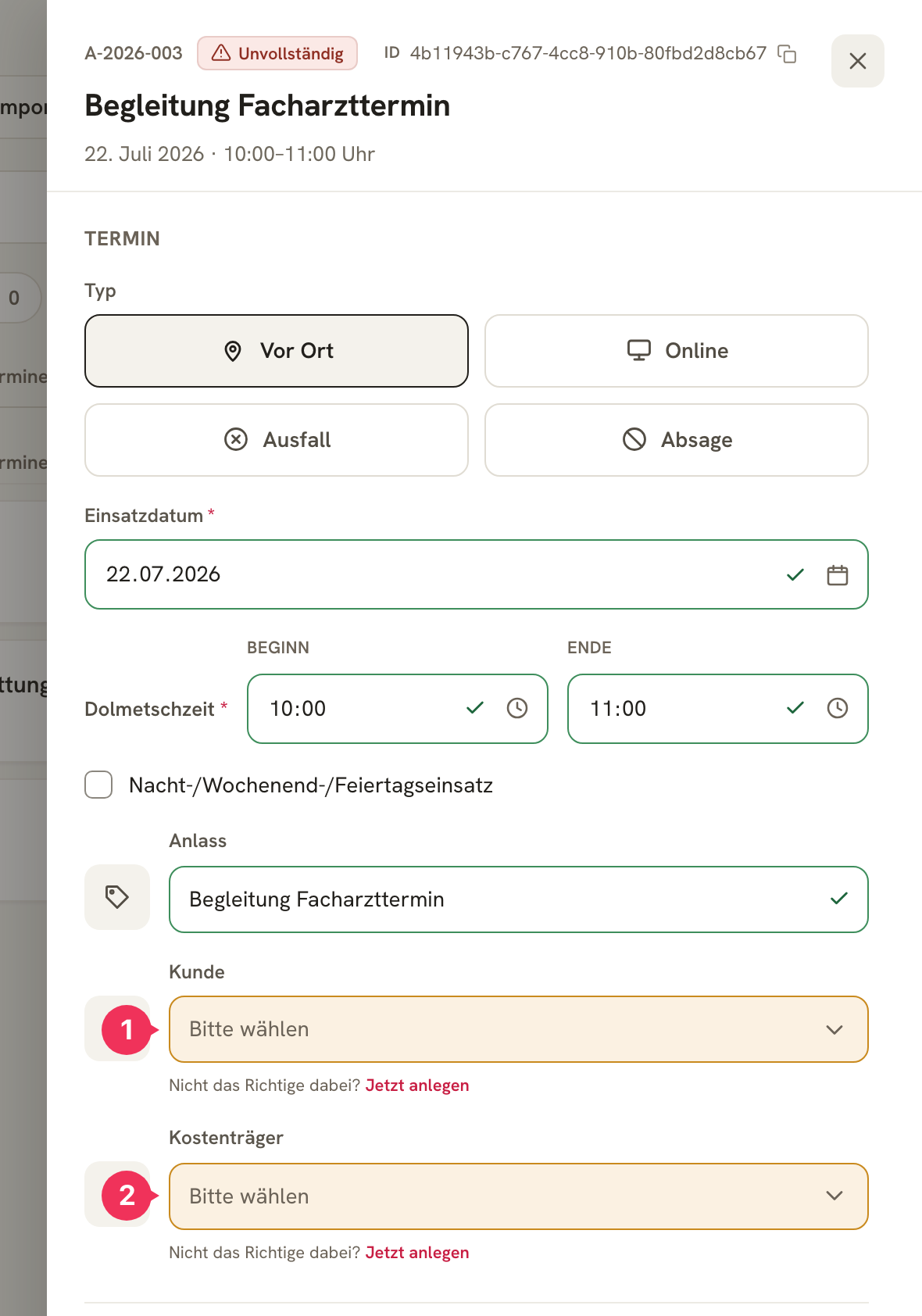
These rules apply to the check:
| Item | Required for billing? |
|---|---|
| Einsatzdatum, Beginn, Ende | Always |
| Anlass | Always |
| Kunde | Always |
| Kostenträger | Always |
| Abrechnungsmodell | Always (normally comes from the Kostenträger) |
| Abgesagt am, abgesagt durch, Auftraggeber | Only for Ausfall and Absage |
| Verkehrsmittel | Only for Vor Ort and Ausfall |
| Start-, Einsatz- und Endadresse | Only for Vor Ort and Ausfall |
| Fahrzeiten und Distanzen | Only for Vor Ort and Ausfall |
| Deutschland-Ticket oder Ticketpreis | Only for trips using ÖPNV (public transport) |
| Parkbeleg | Only for car trips with parking costs |
When an appointment changes
If you move, rename, or delete an appointment in the calendar, what happens depends on whether it's already been imported:
- Not yet imported: Click Neu synchronisieren in the import dialog. The calendar is read in completely fresh, and the preview reappears with the current titles, times, clients – and a freshly calculated travel chain.
- Already imported: The job now belongs to you, not to the calendar anymore. Changes to the appointment no longer affect it; correct it directly in DolmiDesk™. If it needs to be rebuilt entirely from scratch, delete the job and import the appointment again.
A perfect calendar entry
Here's what a fully used entry looks like:
Titel: Gerichtstermin Herr Müller
Zeit: 09:00 – 11:00
Ort: Gerichtsstraße 2, Frankfurt
Beschreibung:
Kunde: Max Müller
Transportmittel: Auto
Bitte am Eingang warten
DolmiDesk™ will:
- Recognize the client "Max Müller" and use their default Kostenträger (e.g. "Landgericht").
- Enter the Anlass "Gerichtstermin Herr Müller," type
Vor Ort. - Calculate the route by car – outbound and return trips, times, and kilometers.
- Pull the Abrechnungsmodell via the Kostenträger and display the amount.
- Ignore the last line, since it isn't a recognized key.
About the author